

Setting Up a Scoring Scheme
Brainysoft software includes an internal scoring functionality. This functionality provides advisory decision support. It displays the number of points and a recommendation.
Below you will learn how to set up internal scoring on your own.
In the "Admin" tab, you need to open the "Scoring Schemes" menu.

To create a new scoring scheme, click the "Create" button.
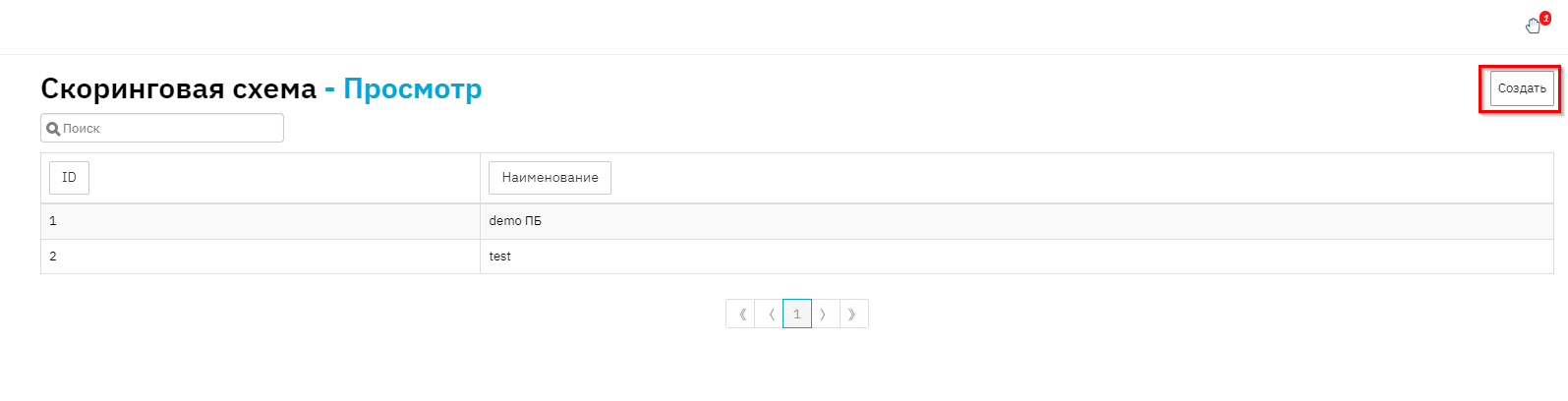
On the opened page, you need to configure the scoring scheme settings. The scoring scheme has standard verification settings; it is not necessary to fill in all values.

After filling in certain values, you need to complete the "Recommendation by Score Range" section.
For this scheme to start working, you need to select it in the loan product. To do this, open the "Loan Products" directory and select the scoring scheme in the corresponding field. You can use one scoring scheme for all loan products, or have a separate scoring scheme for each loan product.

But that's not all.
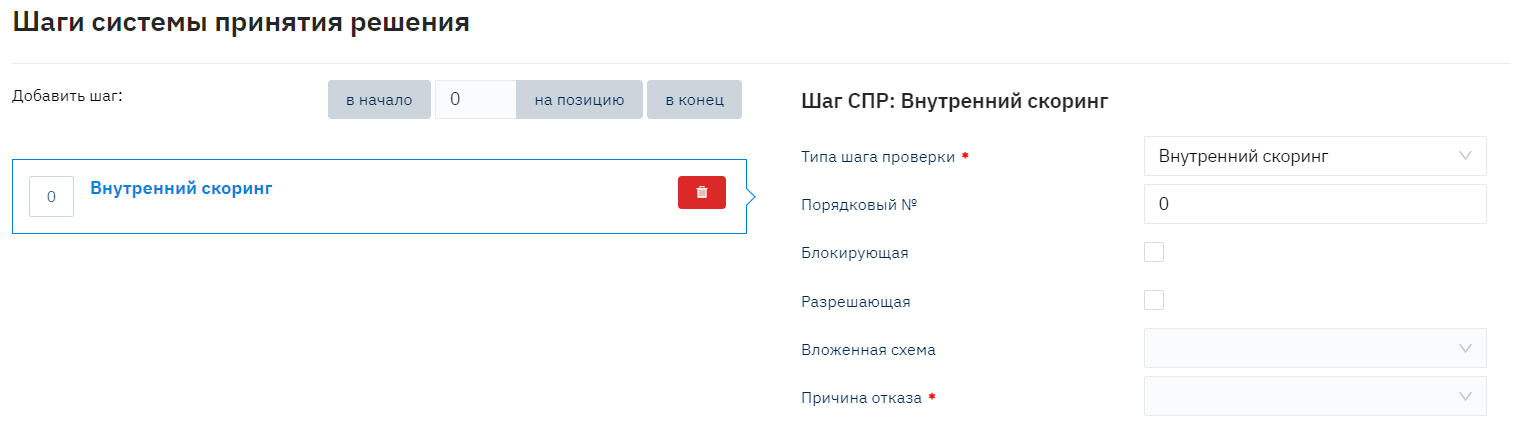
You also need to specify the "Internal Scoring" verification step in the Decision Making Rules (DMR).
Finally, you need to enable the widget displaying the scoring points and recommendation. To do this, in the interface constants, enable the widget "Scoring Recommendation Widget on the Application Page".

After completing this work, the Internal Scoring will be functional.