

Basic - Active Clients
The report includes information on Active Clients as of the specified date.
The Brainysoft program considers Active Clients as clients who have a loan balance at the time the report is generated.
The "Active Clients" report does not include clients who have active deposits and shares.
The report has a generation mode:
-Without off-balance sheet amounts;
When generating the report in this mode, all off-balance sheet amounts will not be included in the report.
Below we will review the elements and fields of the "Active Clients" report for a specified date.
To generate the report, go to "Report" - "Basic" - "Active Clients", set the date, select the appropriate filter if necessary, and click the "Generate" button. Then select from the list of generated reports and download it to your PC.
When generating the report, you can use filters that must be set before generating the report. The selection can be made based on values from the contract, application, client profile, and transaction. As an example, let's consider applying a filter by last name (Ivanov):
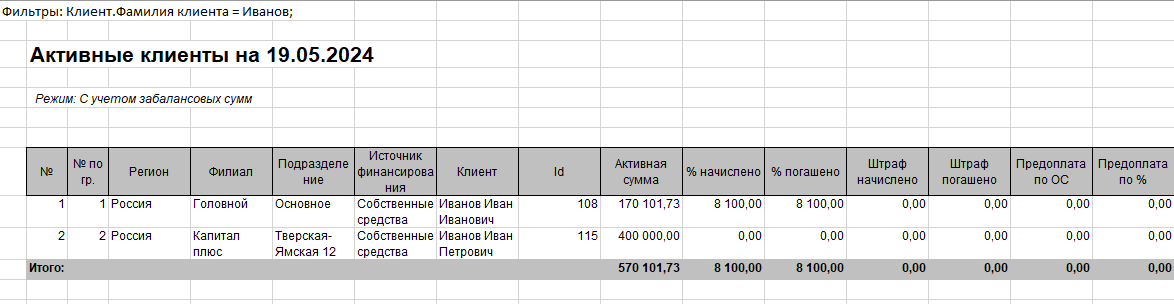
Below is an example of generating a report without a filter:

- Field "No." this field displays the sequential number in the report list.
- Field "No. by gr." this field displays the sequential number in the report list.
- Field "Region" this field displays the name of the region where the loan was opened. When filling out the Branch directory, the Region is specified.
- Field "Branch" this field displays the name of the branch where the loan was opened. An organization may have several branches, accordingly, the report will include the branch where the loan was opened. A branch is a grouping of divisions by their territorial proximity to each other. This information is displayed in the "Contract" - "Request" section. Let me explain with an example: An organization has 3 loan issuance points in the city of Odintsovo. The city of Odintsovo will be the branch, and the 3 issuance points located in the city of Odintsovo will be divisions.
- Field "Division" this field displays the name of the division where the loan was issued. An organization may have several divisions, accordingly, the report will include the division where the loan was opened. In the program, any issuance point is considered a division. This information is displayed in the "Contract" - "Request" section.
- Field "Funding Source" this field displays the value that is filled in when creating a contract. This information is displayed in the "Contract" - "Request" section.
- Field "Client" this field displays personal information about the borrower - the client's full name. This information is displayed in the "Contract" section.
- Field "Id" - this is a unique client code that can be used to run the required command without specifying the username. By default, the actual numeric user identifiers are displayed.
- Field "Active Amount" this field displays information about the remaining principal loan amount that the client must pay to repay the loan. This information is displayed in the "Contract" - "Financial Information" "Total" section.
- Field "% Accrued" this field displays the total amount of all accrued interest on the loan. (simple and overdue interest).
- Field "% Repaid" this field displays the total repaid interest amount on the loan. (simple and overdue interest).
- Field "Penalty Accrued" this field displays the total accrued amount for penalties (Late payment penalty, fee penalty, interest penalty).
- Field "Penalty Repaid" this field displays the total repaid amount for penalties (Late payment penalty, fee penalty, interest penalty).
- Field "Principal Prepayment". If the Client made a prepayment, the program automatically calculates this amount and applies the prepayment to the Principal. Data can be viewed in the "Contract" - "Contract Financial Position" - "Total" section. The repayment order for the deposited amount is specified in the "Contract" - "Credit Product" - Repayment Order section.
- Field "Interest Prepayment". If the Client made a prepayment, the program automatically calculates this amount and applies the prepayment to Interest. Data can be viewed in the "Contract" - "Contract Financial Position" - "Total" section. The repayment order for the deposited amount is specified in the "Contract" section.