

Working with Assignment Contracts and Accounting Options in the System
The Brainysoft system has two accounting options:
- When a contract is sold, but remains "alive" in the system with the "Sold by Assignment" indicator. This means that accruals and repayments will continue, but contracts can be filtered when exporting to 1C or other exports. In this case, for assignment sales in the Contract's financial information, there will be a "Sold" indicator, as shown in the example:

- When a contract is sold - it is fully written off, the contract is closed with the status Written Off by Assignment.
For option #1, there is an option to specify in the Contract the date, contract number (linked to the assignee (service agent)), the amount for which the Contract was sold (with the ability to get the current balance on the Contract).
First of all, you need to fill out the Counterparties directory, which is located at Admin - Directories - Counterparties. In this case, Counterparty means the assignee.
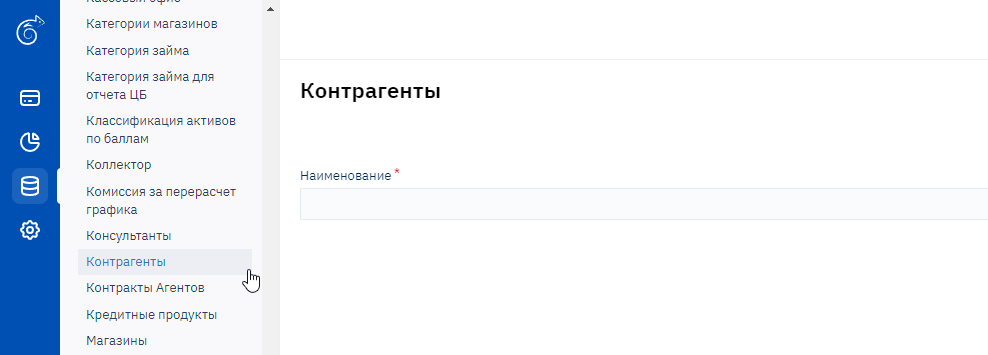
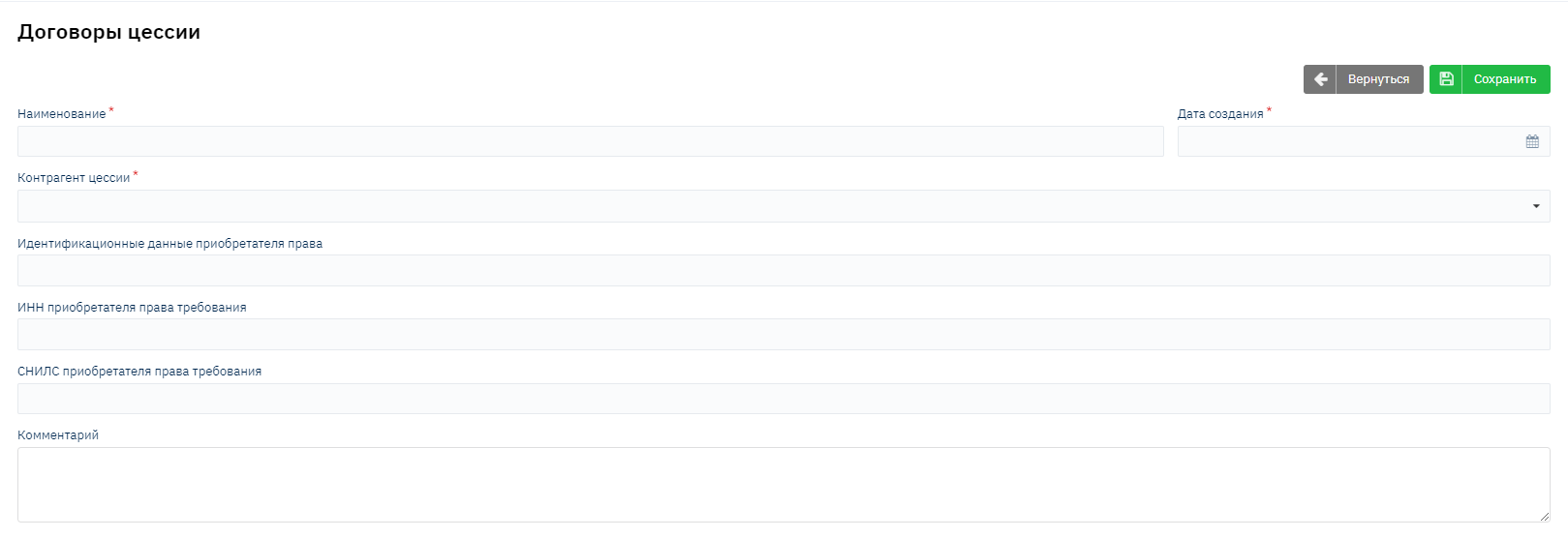
Elements of the Counterparties directory are used in the Assignment Contracts directory for the assignee (assignment counterparty).
The second step is to fill out the Assignment Contracts directory, which is located at Admin - Directories - Assignment Contracts.
After filling out the Directories, you can go to the Contract in view mode and sell it by assignment by clicking on the "Transfer by Assignment" link:
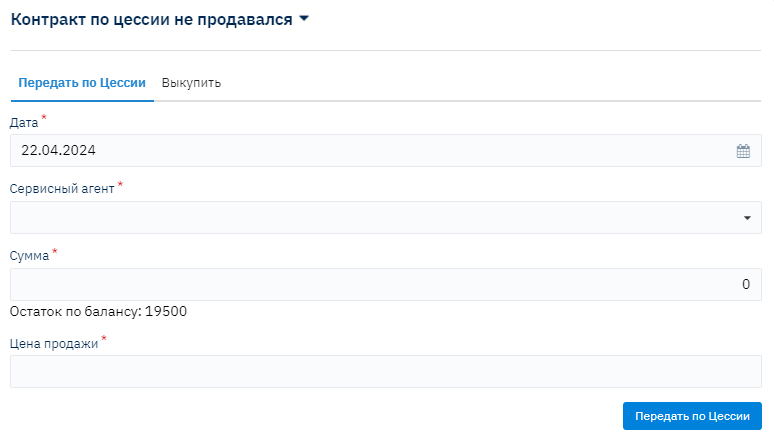
In the window that opens, enter the necessary data and click the "Transfer by Assignment" button. The Contract will have a "Sold" indicator and status change information.

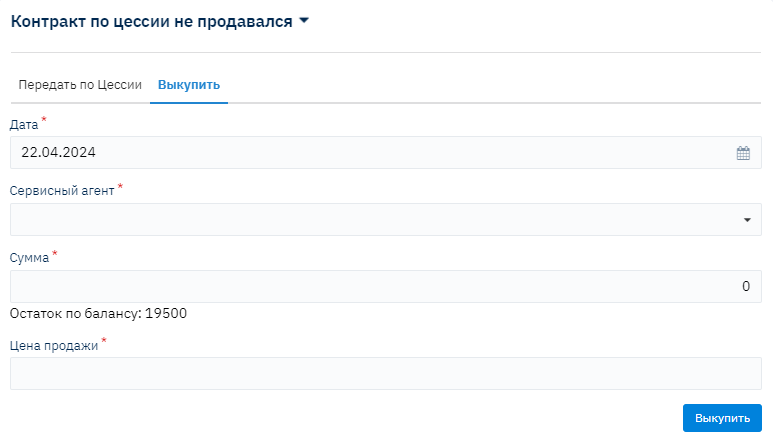
In the same way, you can buy back the Contract, then the Contract will have a "Bought Back" indicator:

For option #2.
The "Closure by Assignment" process is performed on the Contract.
In this case, the Contract balance is written off, and the Contract becomes closed with the status "Written Off by Assignment".
To perform this procedure, you need to go to Admin - Complex Processes. In the window that appears, select Process Type - Closure by Assignment, set the operation date and time, configure filtering by the required parameters and click the "+" button, then click the "Select Contracts" button. In the example below, the selection is made by contract code:
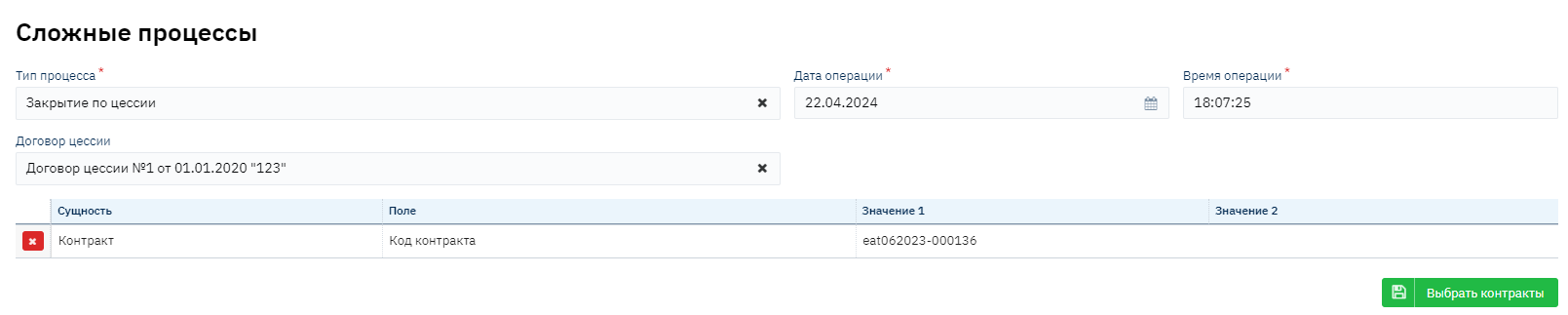
After clicking the "Select Contracts" button, the system will make a selection of Contracts according to the specified conditions. If you do not need to perform the operation on all found Contracts, you can check the box next to the unnecessary Contract and click the "Exclude" button. After that, click the "Start Process" button.

After starting the process, the system will display a corresponding message:
