

Analytical - Active Collaterals
The report includes information on Active Collaterals as of the specified date. Brainysoft considers Active Collaterals to be loans that have a positive balance at the time the report is generated. Below we will review the elements and fields of the "Active Collaterals" report for a given date. To generate the report, navigate to "Report" - "Basic" - "Active Collaterals", set the date, select the appropriate filter if necessary, and click the "Generate" button. Then select from the list of generated reports and download it to your PC.
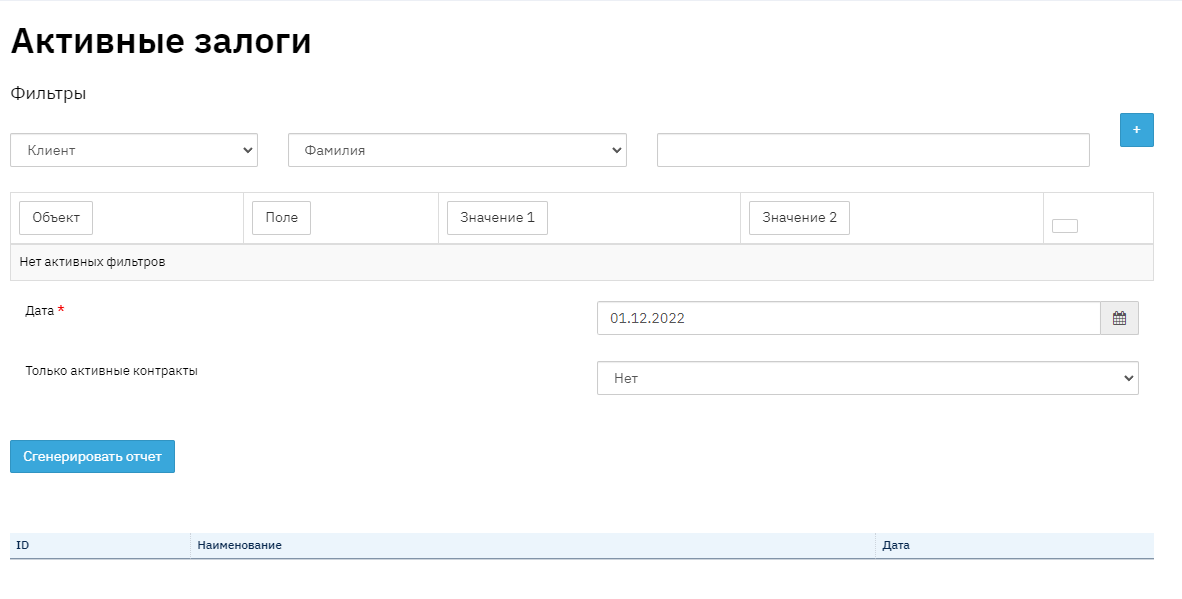
When generating the report, you can use filters that must be set before generating the report. Selection can be made by values from the contract, application, client profile, and operation. Let's consider an example report:

Field "No." - this field displays the sequential number in the report list.
Field "Collateral ID" - this field displays the unique identifier number of the collateral.
Field "Region" - this field displays the name of the region where the loan was opened. When filling out the Branch directory, the Region is specified.
Field "Branch" - this field displays the name of the branch where the loan was opened. An organization may have several branches, accordingly, the report will include the branch where the loan was opened. A branch is a grouping of divisions by their geographical proximity to each other. This information is displayed in the "Contract" - "Request" section. Let me explain with an example: An organization has 3 loan issuance points in the city of Odintsovo. The city of Odintsovo will be the branch, and the 3 issuance points located in the city of Odintsovo will be the divisions.
Field "Division" - this field displays the name of the division where the loan was issued. An organization may have several divisions, accordingly, the report will include the division where the loan was opened. In the program, any issuance point is considered a division. This information is displayed in the "Contract" - "Request" section.
Field "Funding Source" - this field displays the value that is filled in when creating the contract. This information is displayed in the "Contract" - "Request" section.
Field "Contract" - this field displays the unique sequential number of credit contracts. This information is displayed in the "Contract" section.
Field "Client" - this field displays personal information about the borrower. This information is displayed in the "Contract" section.
Field "Contract Status" - this field displays information about the current contract status at the time of report generation. Contract statuses can be: normal, overdue, restructured, restructured overdue. Data can be viewed in the "Contract" - "Financial Information" - "Status History" section.
Field "Issue Date" - this field displays the loan issue date. This information is displayed in the "Contract" section.
Field "Last Repayment Date" - this field displays the scheduled loan repayment date, which is calculated when the loan is issued. This information is displayed in the "Contract" section.
Field "Collateral" - this field displays the name of the collateral, which is specified when creating the collateral.
Field "Collateral Type" - this field displays information about the collateral type. The collateral type is filled in as a collateral type directory in the BS system.
Field "Pledgor" - this field displays personal data – full name of the pledgor. The person who provides the collateral.
Field "Appraised Value" - this field displays the appraised value of the collateral, this amount is specified in the appraised value field when entering the collateral into the system.
Field "Collateral Value" - this field displays the collateral value of the collateral, this amount is specified in the collateral value field when entering the collateral into the system.
Field "Collateral Property" - this field displays additional collateral property data that was specified when creating the collateral. For example: car brand, license plate number, registration certificate number, etc.
Field "Documents" - this field displays information from the "Basis Document" field when creating the collateral.
Field "Detailed Description" - this field displays information from the "Additional Comments on Collateral" field when creating the collateral.