Credit Line
Description of Main Process Objects
The table describes the main accounting objects in the software, their purpose, source of information, and the parameters that characterize them.
| Object Name in Software | Object Description | Source of Object Information | Main Parameters |
|---|---|---|---|
| Brainysoft Software | Storage and accounting of information about the Client and their loans: debt accrual according to loan terms, Distribution of received payments to repay debts | Software installed in the Kupi ne kopi circuit | An account is required to log into the software. |
| Retailer | External system - OZON online store. Transmits information about the Client and Client Orders | Name – OZON. Integration with Brainysoft Software through Adapter_ | |
| Adapter | External system interacting with the Retailer and Brainysoft Software via API for information transfer between systems | Integration with Retailer Software and Brainisoft Software | |
| Client | Client Card. Contains personal data and other client data, as well as all related objects: Application, Contract, Wallet, Credit Lines | Information is transmitted by the Retailer (API integration) through Adapter | Full name. Passport data. ID - unique number in brainysoft software. GUID - unique number in the Retailer system |
| Credit Line | Object containing information about the approved client limit and all Orders made within the credit line | Information is transmitted by the Retailer (API integration) through Adapter | Number: 90000000XX – contract number concluded with the client. ID – unique number in brainysoft software |
| Application | Object containing information about the client's intention to receive a credit limit, as well as to place an order: order amount, credit product. The application can be rejected or approved. | Information is transmitted by the Retailer (API integration) through Adapter | Number – unique sequential number in brainysoft software. ID- unique number in brainysoft software |
| Credit Contract (hereinafter Client Order) | Object containing information about the client's order (purchase) within the credit line: amount, terms on which the purchase was made (credit product), payment schedule | Information is transmitted by the Retailer (API integration) through Adapter | Number – Order number in brainysoft software, equal to the order number in the Retailer system. ID – unique number in brainysoft software |
| Wallet | Object to which all client payments are "linked". Payment goes to the wallet, after which the received amount is distributed to repay debts on all Client Orders. | Created automatically in Brainysoft Software when the Credit Line is created | Number – unique sequential number in brainysoft software with prefix "P". ID- unique number in brainysoft software |
| Credit Product | Object containing information on loan terms: term, rate, procedure for calculating amounts in schedules, payment distribution procedure, penalty rates, etc. "Linked" to each contract (order). | Created by authorized users in Brainysoft Software, in the Credit Products directory. Specified when creating a Lead or Application by users in the interface or by external systems via API | Name – name in brainysoft software, corresponds to the name in the Retailer system. ID - unique number in Brainysoft Software |
| Client Payment Schedule | The schedule is formed within each contract (order), but the payment date in the schedule is always the same. For example, payments on the 15th of each month. In this regard, a general payment schedule is formed for all client orders within the credit line | Created and calculated in brainysoft software based on data transmitted from the Retailer: date, order amount. Calculation occurs according to the Credit Product settings specified in the Application | Number of tranches – number of payment periods in the schedule |
| Issue Date | Issue/activation of the Order occurs when the Retailer confirms the order availability. | The Adapter creates an expense cash flow in Brainysoft Software, based on which the operation of accruing client debt for the order amount occurs. Payment schedule is formed | Cash flow - movement of funds. Number - unique sequential number in braynisoft software. ID- unique number in brainysoft software |
| Payments | Object (hereinafter income cash flow) containing information: date, amount, payment source, payment purpose. Based on received payments, necessary operations are automatically performed to distribute the amount to repay client debts according to Credit Product terms | Created in Brainysoft Software based on uploaded payment registers for the previous business date. | Cash flow - movement of funds Number - Unique number in the payment system. ID – unique number in Brainysoft Software |
| Expected Payment Amount | Information transmitted by the Retailer if the client made a payment on the Retailer's website. Funds have not yet been received to the MCC's bank account | Information in brainysoft software comes from the Retailer through the Adapter | Only information about the expected payment amount is stored, indicated in the Financial Information for the Credit Line |
| Available Limit | Amount calculated by the formula: Available Limit = Approved Limit (indicated in Credit Line) – Amount of Placed Orders + Repaid Principal Debt Amount (client's principal debt without penalties and other charges). The client can place new orders within the available limit. Can be blocked if there is overdue debt in the Retailer's software | Automatically calculated in Brainysoft Software | Available limit amount is calculated, indicated in the Financial Information for the Credit Line |
| Available Limit Including Expected Payments | Amount calculated by the formula: Available Limit Including Expected Payments = Approved Limit (indicated in Credit Line) – Amount of Placed Orders + Repaid Principal Debt Amount (client's principal debt without penalties and other charges) + Expected Payment Amount. The client cannot place orders for the expected payment amount as funds have not yet been received. The limit can be blocked if there is overdue debt in the Retailer's software | Automatically calculated in Brainysoft Software | Calculated amount, indicated in the Financial Information for the Credit Line |
| Financial Information for Credit Line | Page containing financial information for the Credit Line: debt amounts, payments, schedules. Also the ability to change client status, credit line status, indicate call results | Calculation of financial indicators in Brainysoft Software occurs online considering information received from external systems: New orders, received payments. | Financial Information, Client Statuses, Credit Line, Call Results |
| Financial Information for Credit Contract | Page containing information within a separate Client Order: debt accrual, payment distribution, schedule, status change | Calculation of financial indicators in Brainysoft Software occurs online considering information received from external systems: New orders, received payments. | Financial Information: debt amounts, payments, schedules |
General Interface Information
System Login
Working with BrainySoft software is done through regular browser programs. Recommended browsers: Google Chrome, Opera, Mozila FireFox, Safari, etc.
To start working with the program, you need to follow the project link _https://____ _
In the opened window, enter your Login and Password, click the "Login" button.
"Menu" Panel
When entering BrainySoft Software, the main page opens with a welcome message indicating the user's access and role.
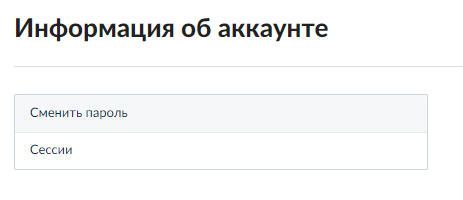
In the upper right corner, the user's full name is displayed with the ability to change the password if necessary and view the login history in the software (sessions).
In the upper left corner is the Brainysoft logo, by clicking on which you can go to the Main page from any page of the program.
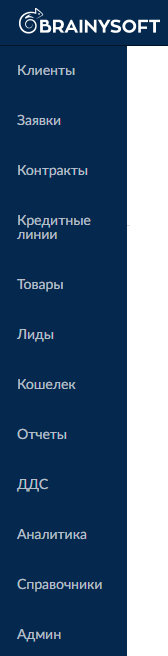
The menu is located on the left vertically.
Access to menu items and information contained on these pages may be restricted according to user access rights.
Menu items containing client and loan information
- Clients - client cards: personal and additional client data
- Applications - client applications for obtaining a credit line, as well as for each order with indication of review history and final application status (approved/rejected)
- Contracts - orders (purchases) of clients within the credit line indicating date, amount and terms of provision
- Credit Lines – credit line agreements containing information about the approved limit, limit terms and all Orders made within the credit line
- Products – page with information on all client products indicating the order number under which the product was purchased
- Leads – list of preliminary client applications, may contain minimal client information. During review, full applications are formed based on leads
- Wallet - objects to which all client payments received within the credit line are "linked". Payment goes to the wallet, after which the amount is distributed to repay debts on all Client Orders
- Cash Flow (Cash Flow Movements) – client payments (hereinafter income cash flow) indicating date, amount and payment source (bank/payment system or other)
Menu items for administration:
- Directories – authorized users enter source information for further use. For example: credit products, users, data collections on client statuses, contracts, etc.
- Reports – the page provides the ability to generate main standard reports for accounting of the organization's activities
- Analytics – page with visual display of standard reports for analyzing the organization's activities
- Admin – page where tools and additional functionality for program configuration are located, as well as for user accounting: creating new accounts, configuring roles, restricting access rights
Working in the Interface. Search, Sorting and Filters in Journals
Search on Main Object Pages
Each menu item page has a search function.
Depending on the section, search parameters may differ.
Next to the search box, click the "Search by" button and select the search parameter.
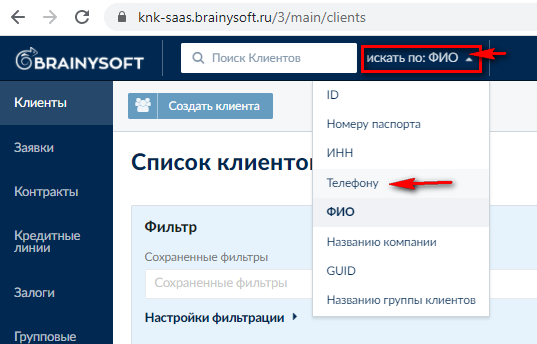
Then enter the value of the selected parameter. If necessary, a hint with the format for the entered value will appear.
After entering the value, a list of all found objects by the specified parameter may appear with the ability to select one of the values.
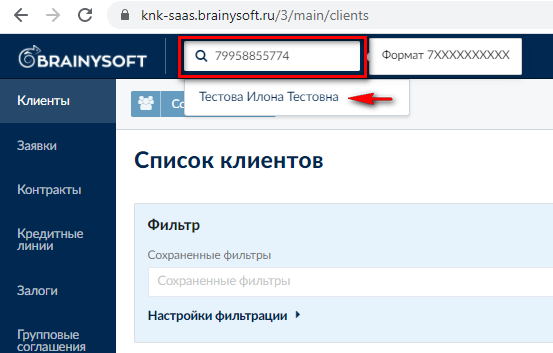
Filters and Sorting
When navigating to menu sections, a list of clients / applications / credit lines / products / cash flows, etc. opens.
By default, the list displays objects created today.
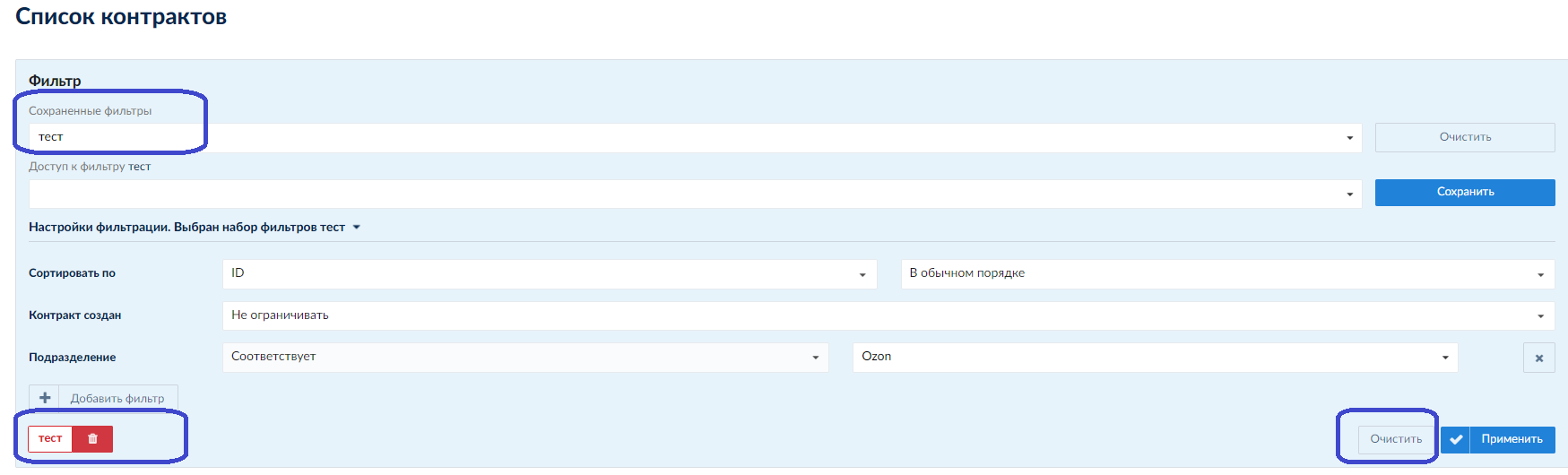
There is the ability to use filters by various object parameters, as well as the ability to save configured filters and use them by default
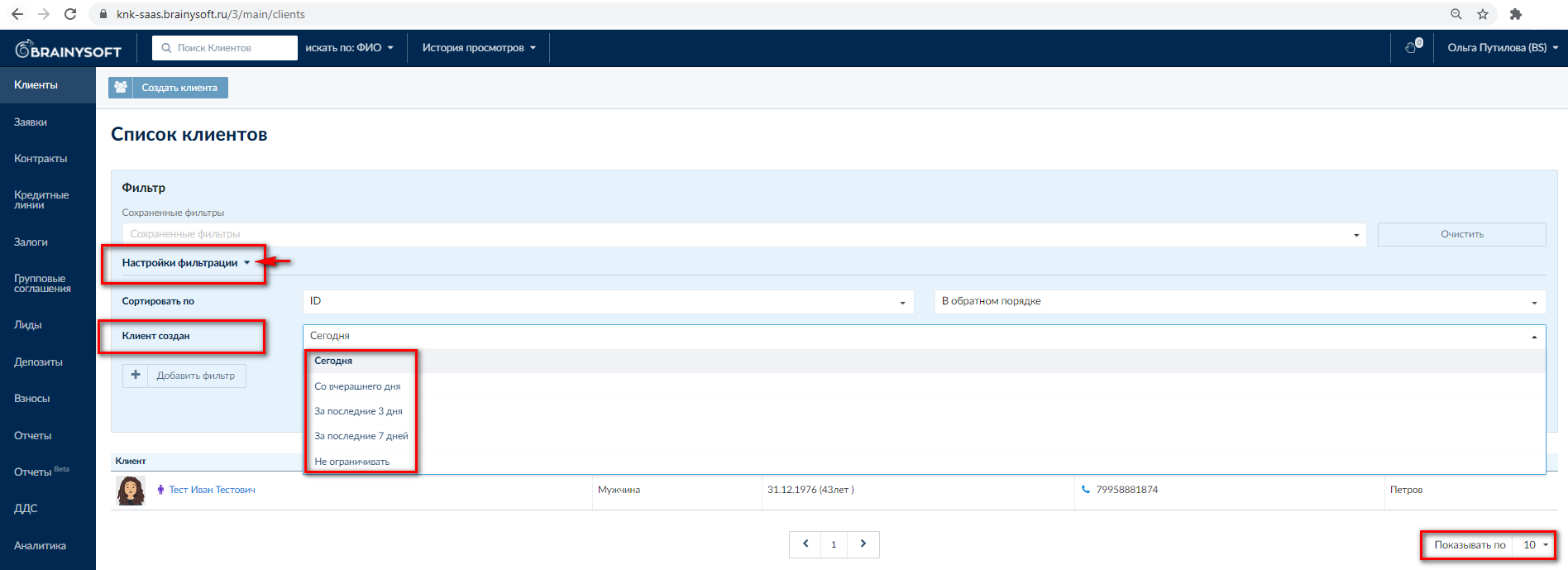
1. Using filters:
- click the "Filter Settings" button
- select parameters, for example, when the client was created – "No limit",
- specify the required sorting: in normal or reverse order
- click "Apply" to update the list on the screen
Additional parameters can also be used by clicking the "Add Filter" button.
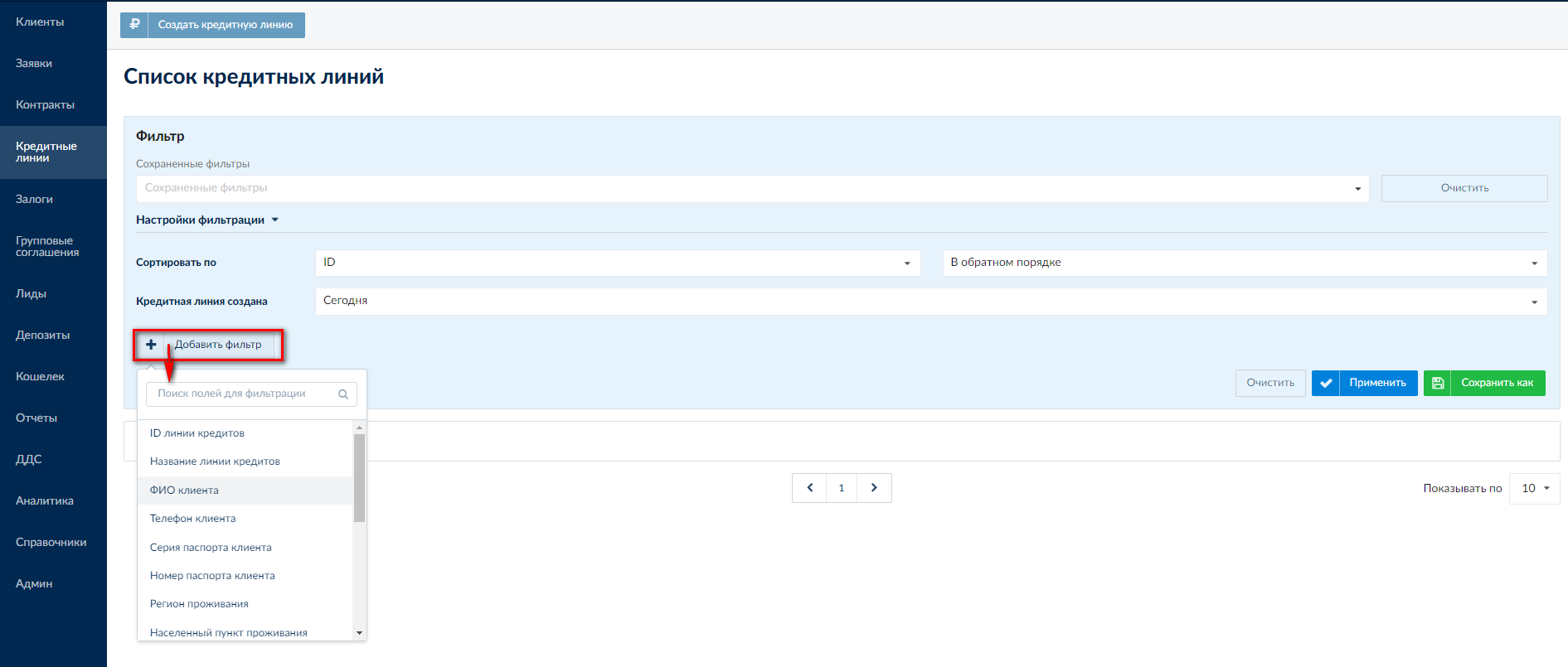
Filter parameters differ for different objects. The table below lists the filter parameters for different objects that can be used if necessary.
Clients:
- Client ID
- Full name
- Creation date
- Company name (for legal entities)
- Phone
- Client manager
Applications:
- Application number
- Application ID
- Creation date
- Full name
- Company name
- Loan amount
- Money receipt method
- Credit product name (at time of issue)
- Credit product
- Current status
- Application processing status
- Created in division
- Client division
- Rejection reason
Contracts
- Contract number
- Contract ID
- Division
- Creation date
- Full name
- Company name
- Loan amount
- Money receipt method
- Credit product name (at time of issue)
- Credit product
- Contract closing date
- Business status
- Branch
Credit Lines
- Credit line ID
- Credit line name
- Client full name
- Client phone
- Passport series
- Passport number
- Residence region
- Residence locality
- Registration region
- Registration locality
- Client gender
- Employment type
- Client status
- Credit line business status
- Negotiation result
- Credit line availability date
- Credit line creation date
After selecting the settings, click the "Apply" button. The corresponding list will be displayed on the screen, but only while you are in this menu section.

2. Saving filters
For subsequent use of preconfigured filters, you need to:
- Configure the filter (select the required parameters)
- Save the configured filter: click the "Save as" button, specify the filter name and click the "Save" button again.
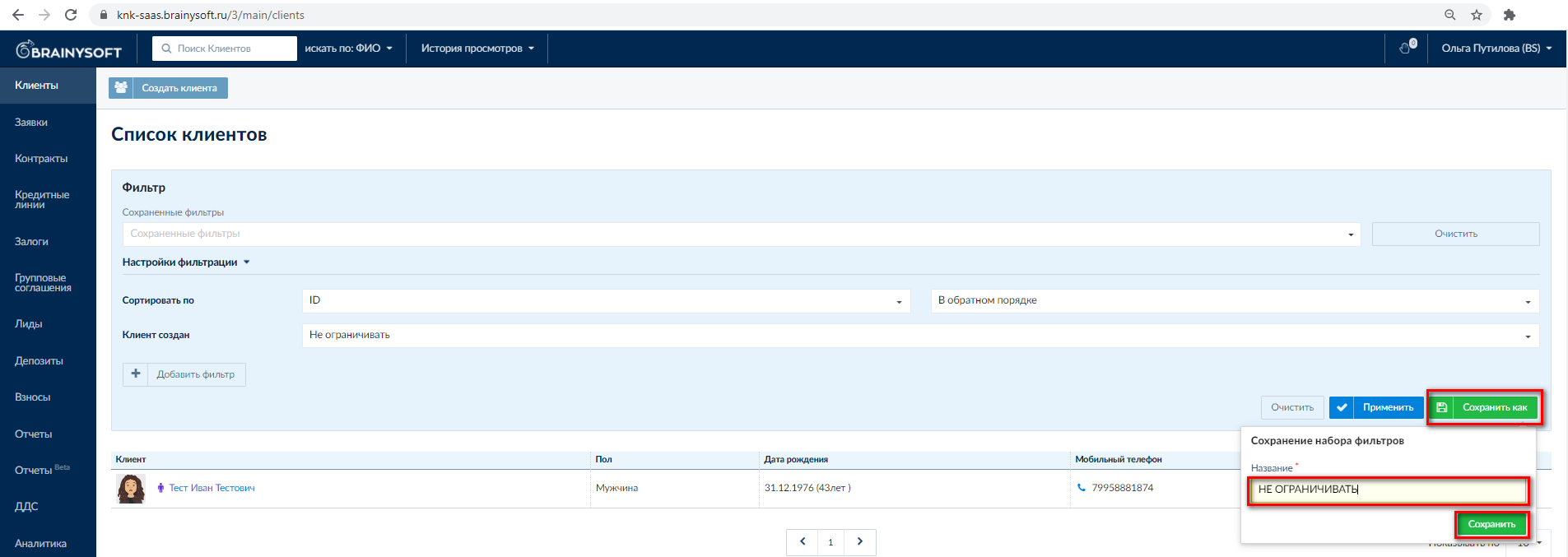
- All previously saved filters are saved in the filter list and available for selection
- Access to the configured filter can be restricted
- If the filter is no longer relevant, there is an option to "clear the list" of filters
Working in the Interface. Navigation Between Pages
Client
The client card contains information about the client: personal data, additional contacts, information about the place of work, etc. Access to viewing and editing data may be restricted.
In addition, the client card provides the ability to see all information on related client objects:
Leads, Applications, Contracts, Wallets, Credit Lines, Products, files uploaded at any time, Relationships (if the client was a participant in another client's transaction with Kupi ne kopi company).
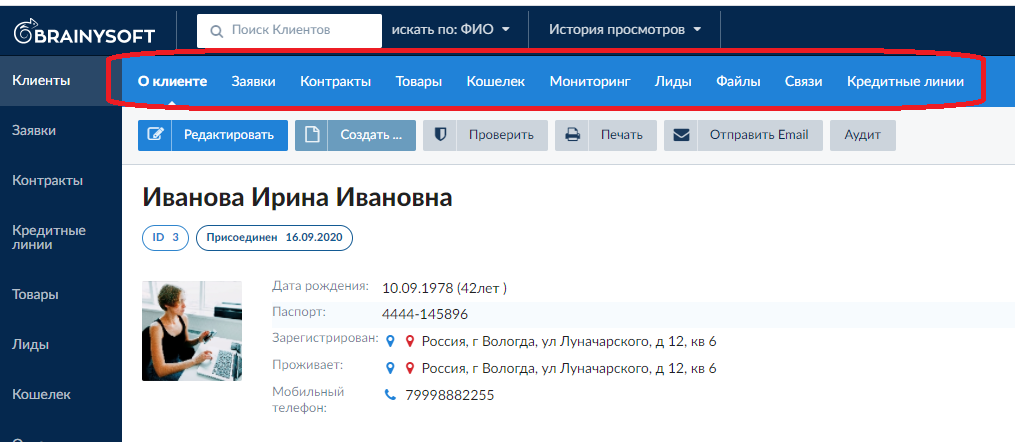
To view the information, click on the object name.
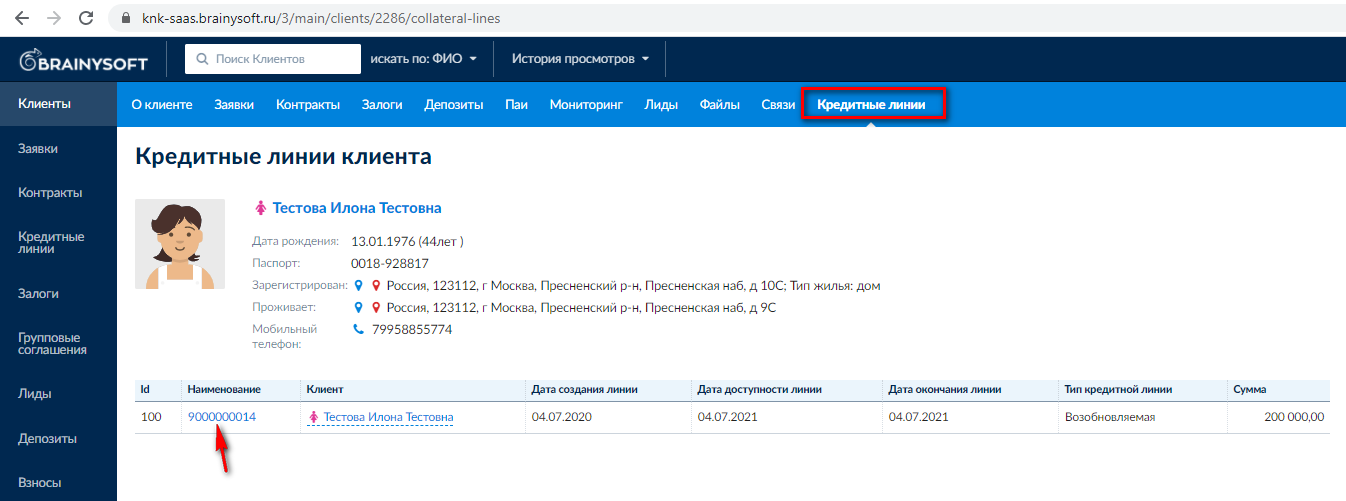
For example, as shown in the picture below, from the client you can go to the list of client's credit lines. All numbers or inscriptions highlighted in blue are clickable links with the ability to go to detailed information about the object.
Application
When navigating to Client Applications, you can view the list, amount, which credit product the application was submitted for, application status (for example: issued, rejected).
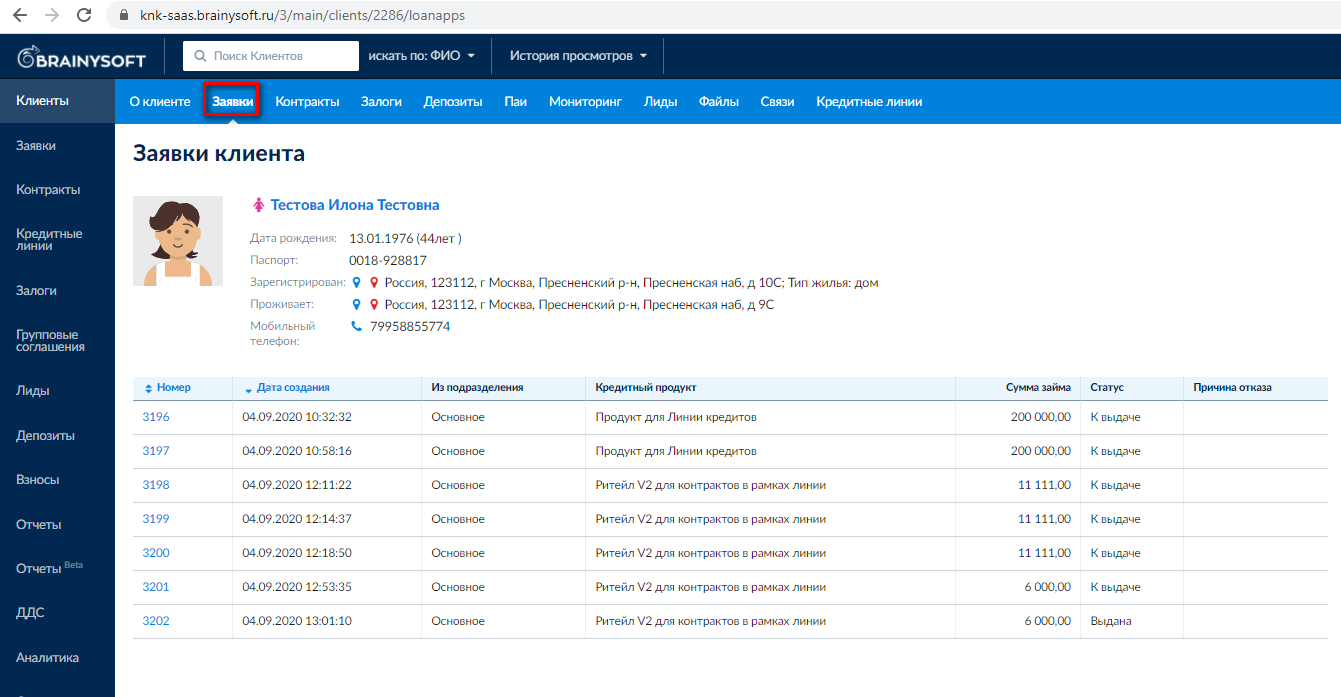
By clicking on the application number (clickable link highlighted in blue), you can go to it and view detailed information (requested amount, credit product name, loan term, etc.)
From the application, you can go to the client's contract issued for this application, or to their credit line with all contracts, by clicking on the contract or line number.
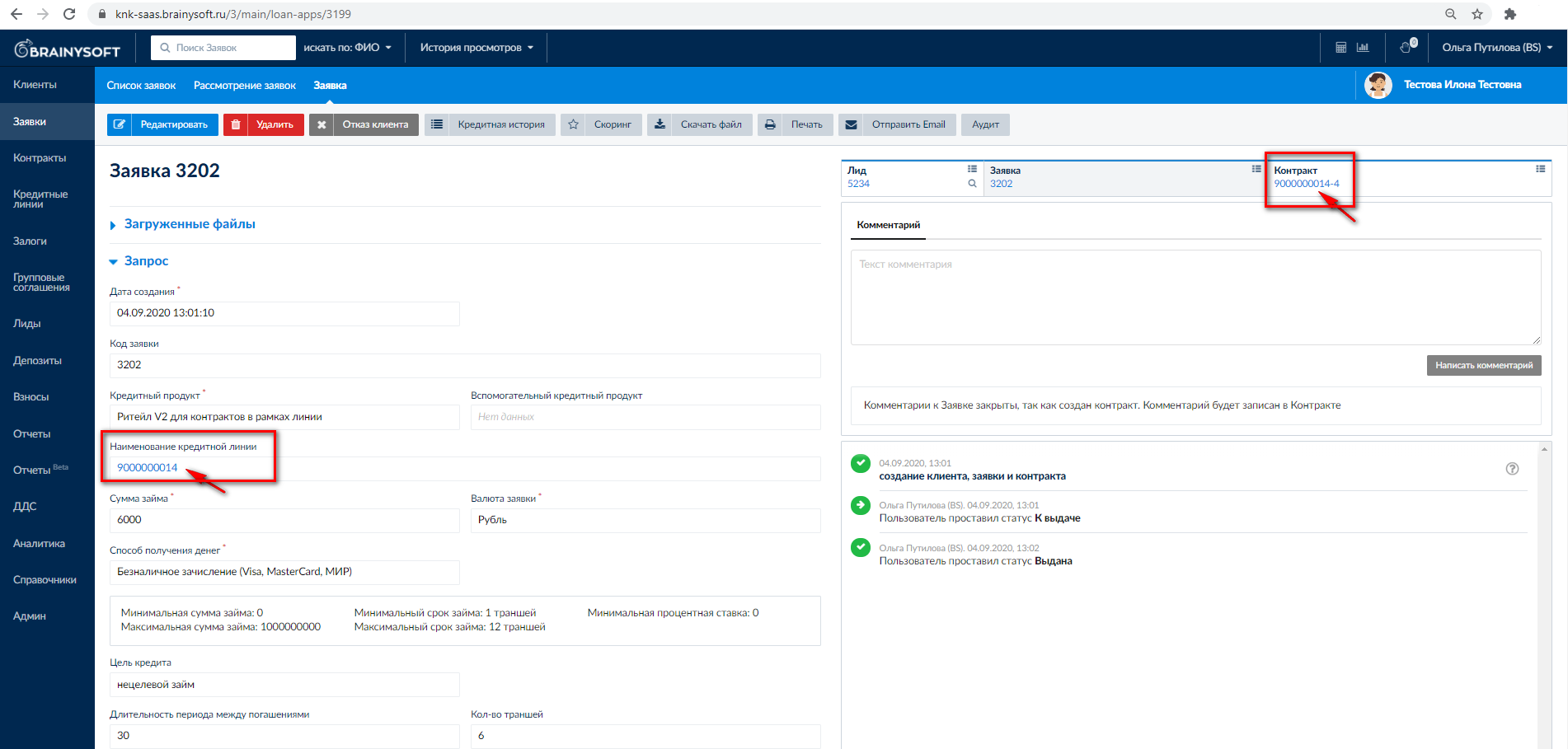
Contract
When navigating to the client's contract (this is possible from the client's contract list, from the application, or from the credit line), the client's full name is indicated in the upper right corner. By clicking on the full name, you can go to the client card.
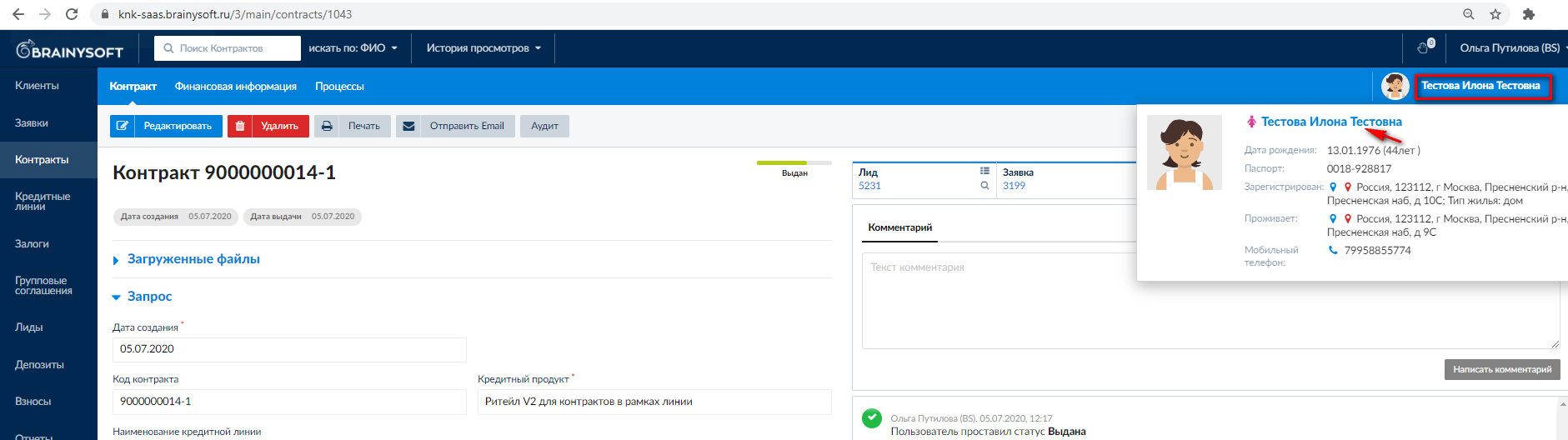
Wallet
By the wallet number, the client makes payments to repay debts on orders (contracts) within the credit line. You can go to the wallet from the client, from the credit line, or find it by search, for example, by phone number or client's full name.
From the wallet, you can only go back to the client. To do this, click on the client's full name on the "Financial Information" tab.
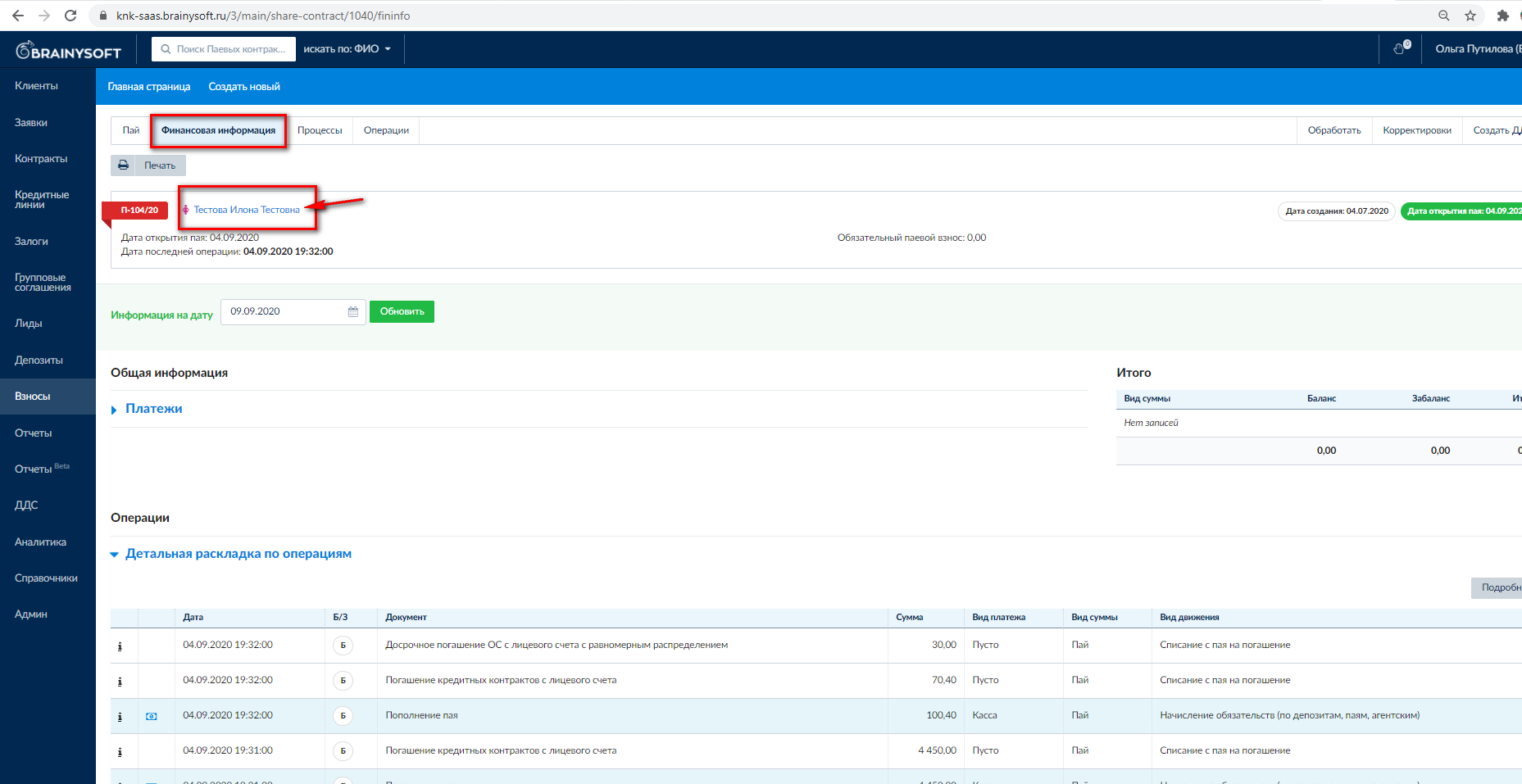
Credit Line
When navigating to the client's credit line, there is the ability to go to any contract within this credit line, applications, or return to client data.
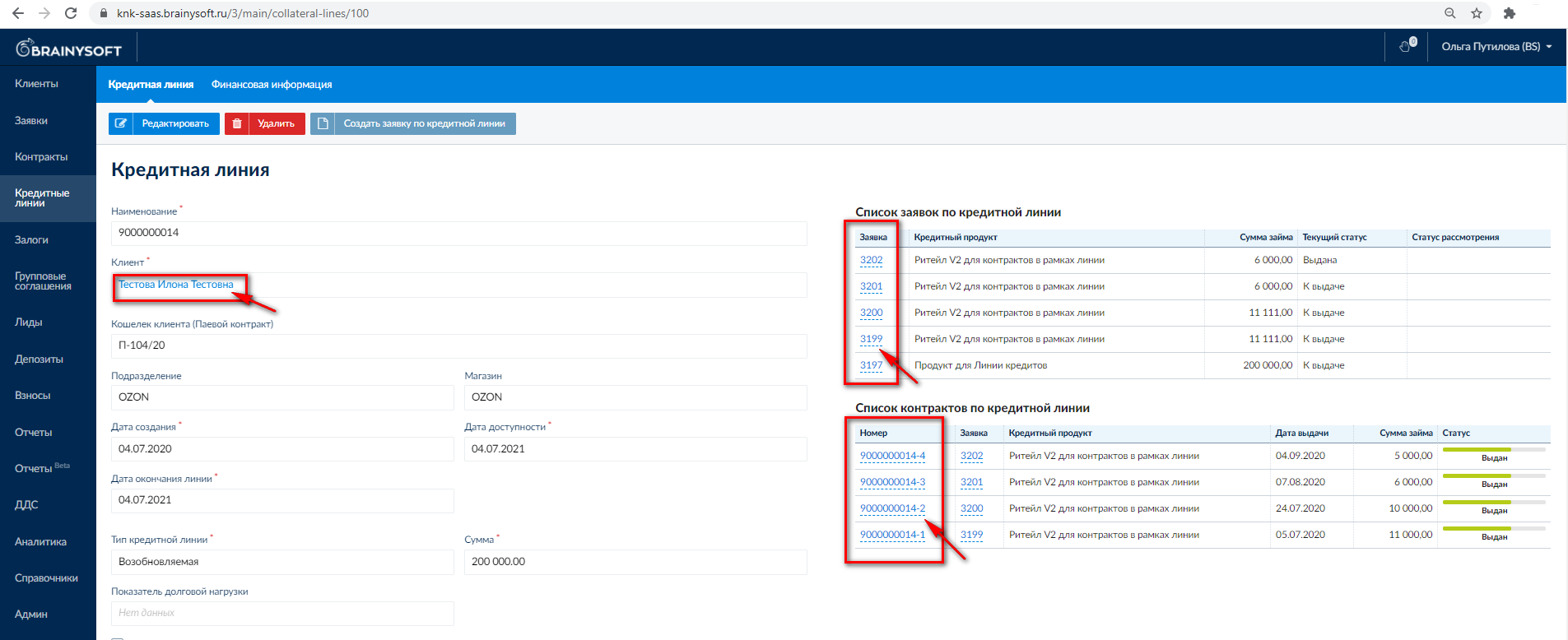
From the financial information for the credit line, you can also go back to the client card, or to their wallet, by clicking on its number.
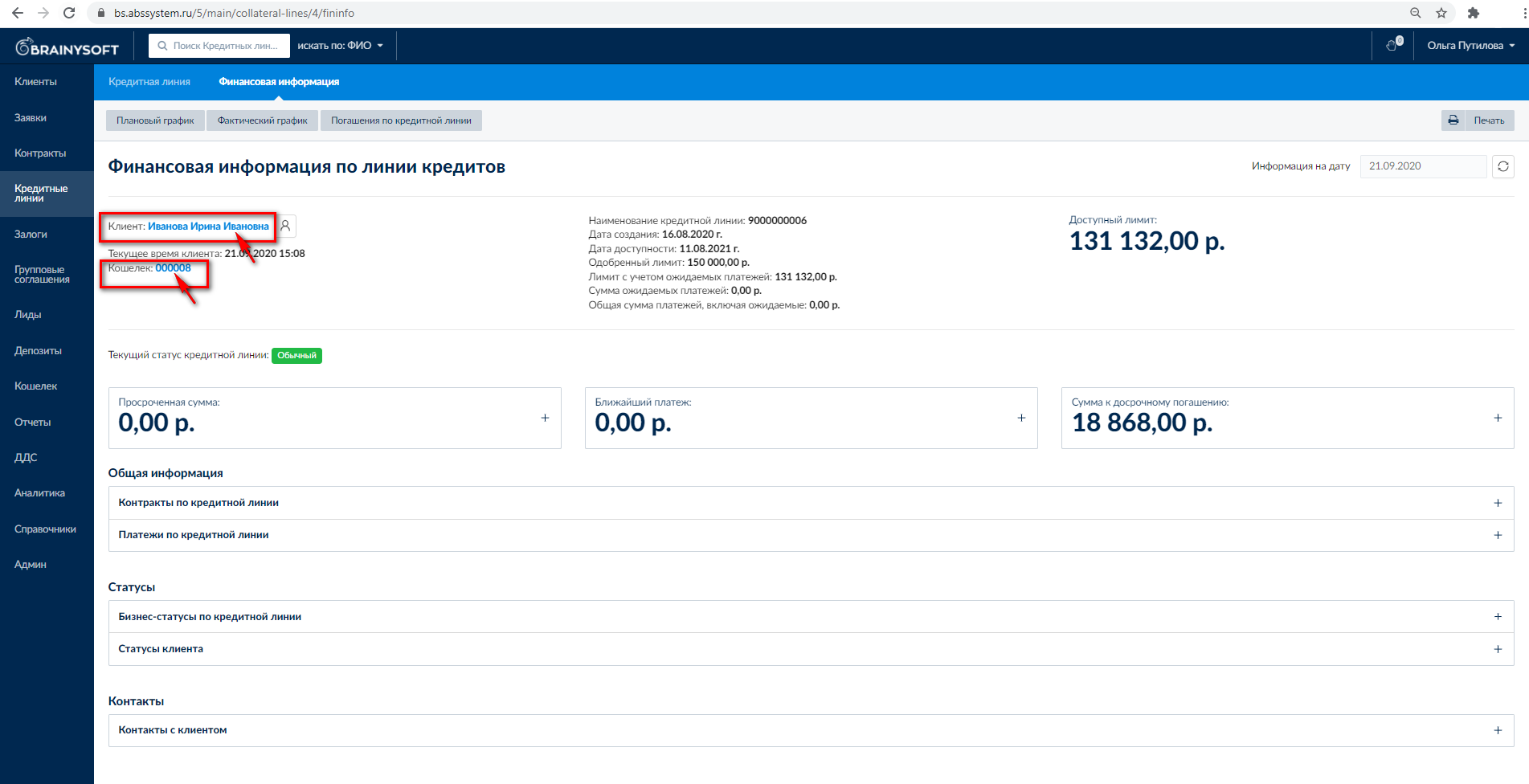
Financial Information for Credit Line
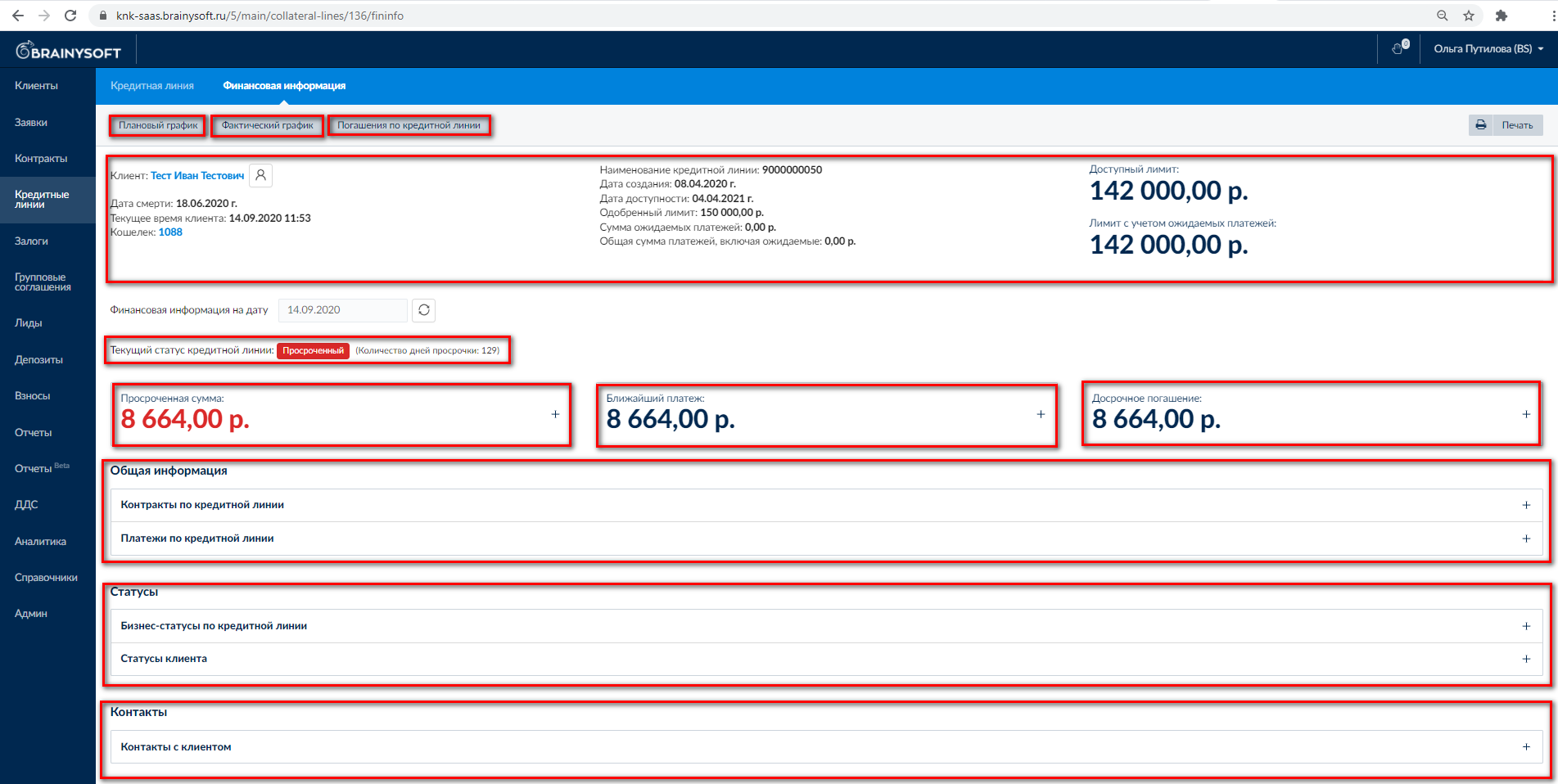
On the Credit Line page, there is the ability to go to the "Financial Information for Credit Line" section.
Financial information for the credit line contains:
Client data (if necessary and with access rights, editing capability);
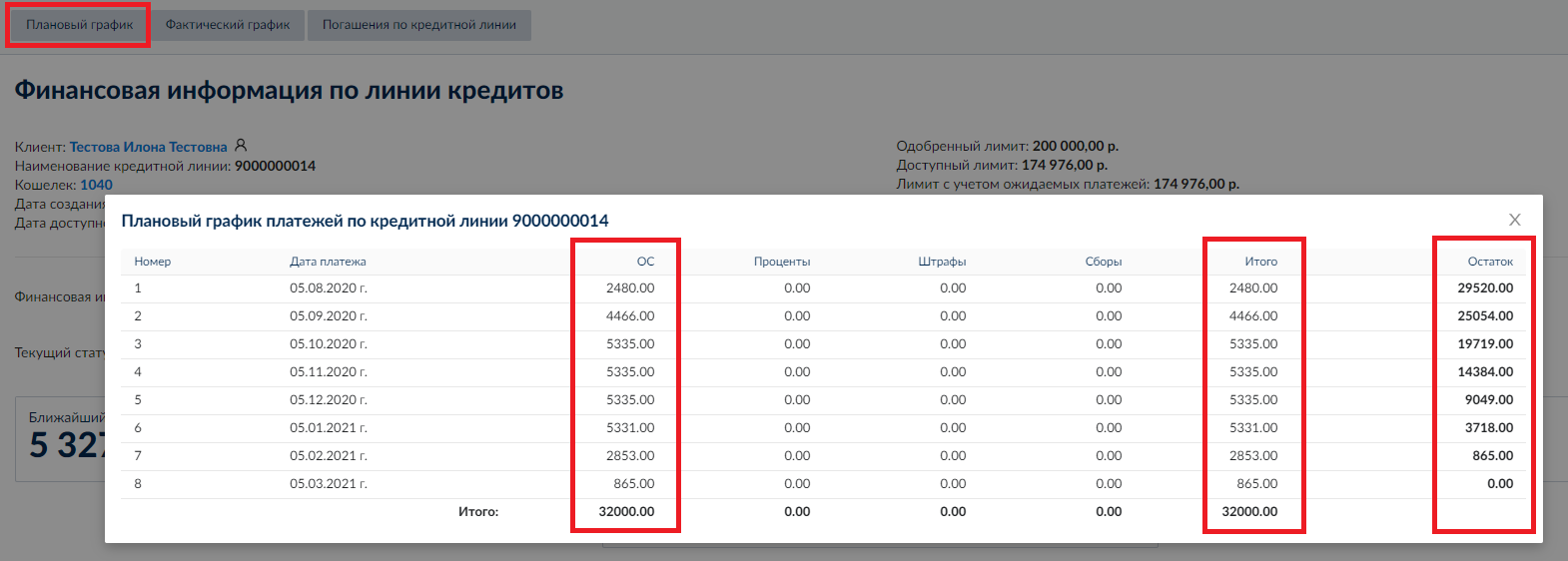
Planned payment schedule – schedule calculated at the time of issue for the contract (plan for client payments). For the credit line, a general schedule is formed for all contracts within the line;
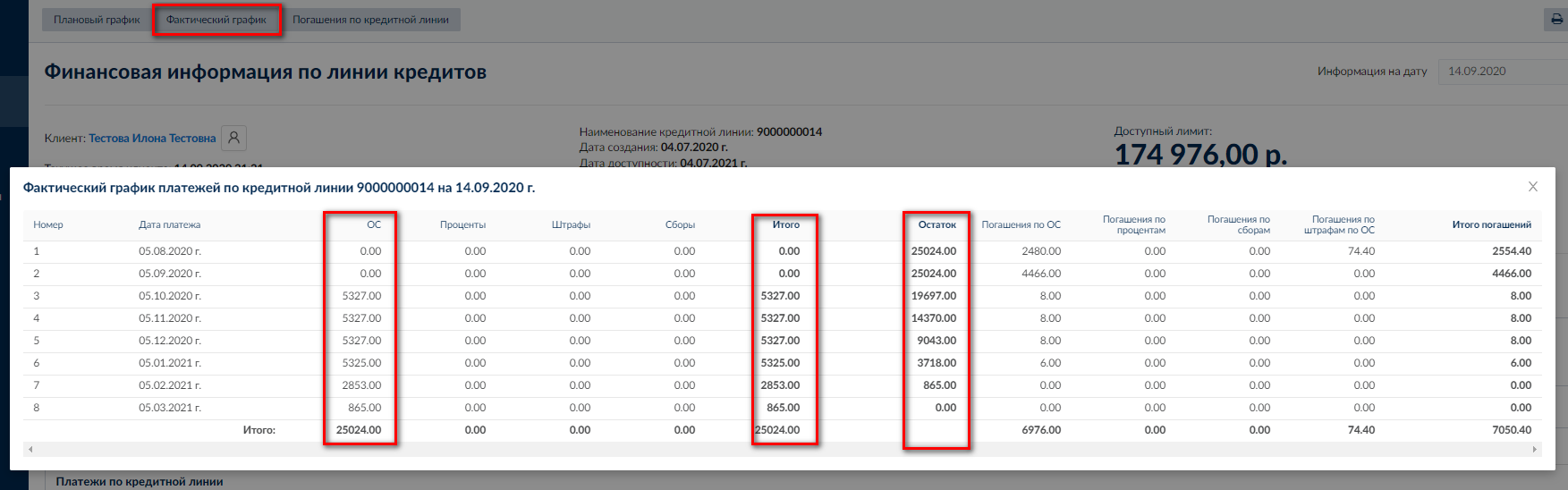
Actual payment schedule – schedule considering funds deposited by the client (already repaid tranches are displayed with zero values). For the credit line, this schedule is also summed from actual schedules for all contracts;
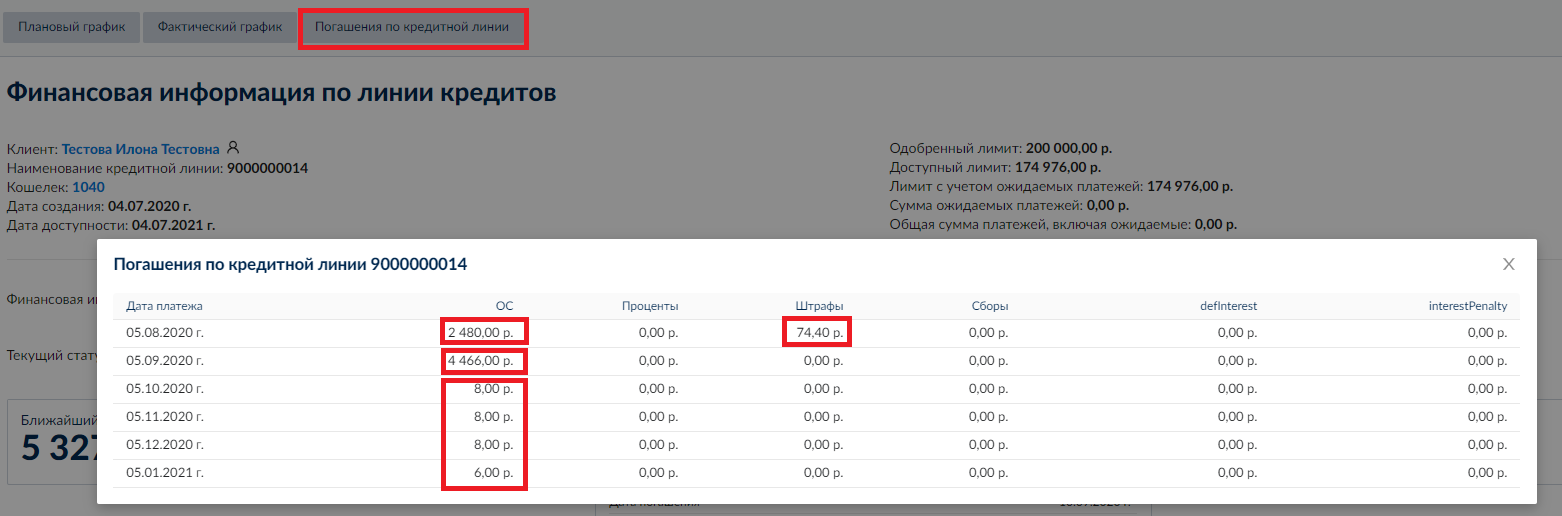
Repayments for the credit line – reflect repaid debts within payment periods (tranches);
Basic information (client's current time, credit line name, line creation and availability dates, approved limit, expected payments, client's death date if it was specified, etc.).
Current credit line status (normal, overdue, etc.)
In case of overdue – overdue debt amount (including penalties);
Nearest payment amount;
Amount for full early repayment;
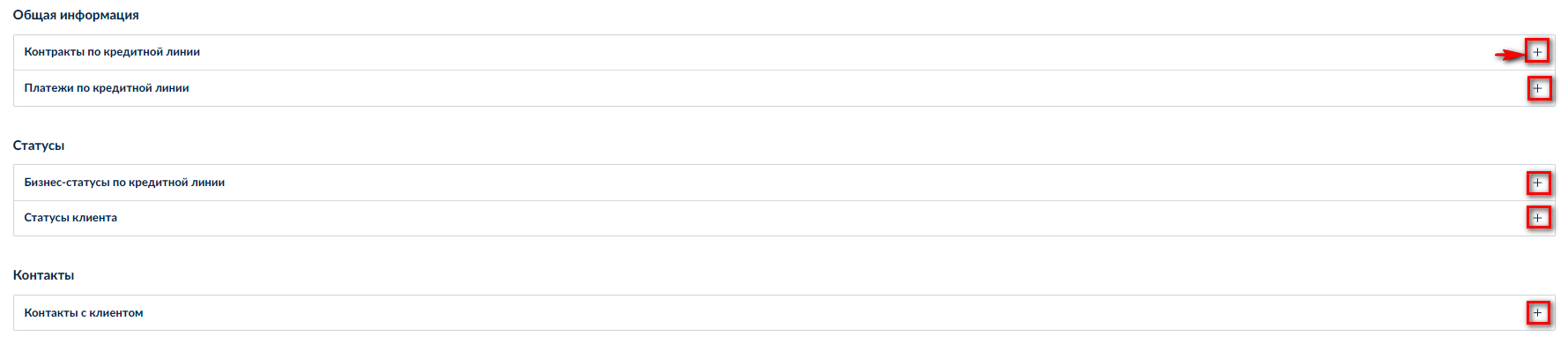
Blocks "General Information", "Statuses", "Contacts" with expandable data.
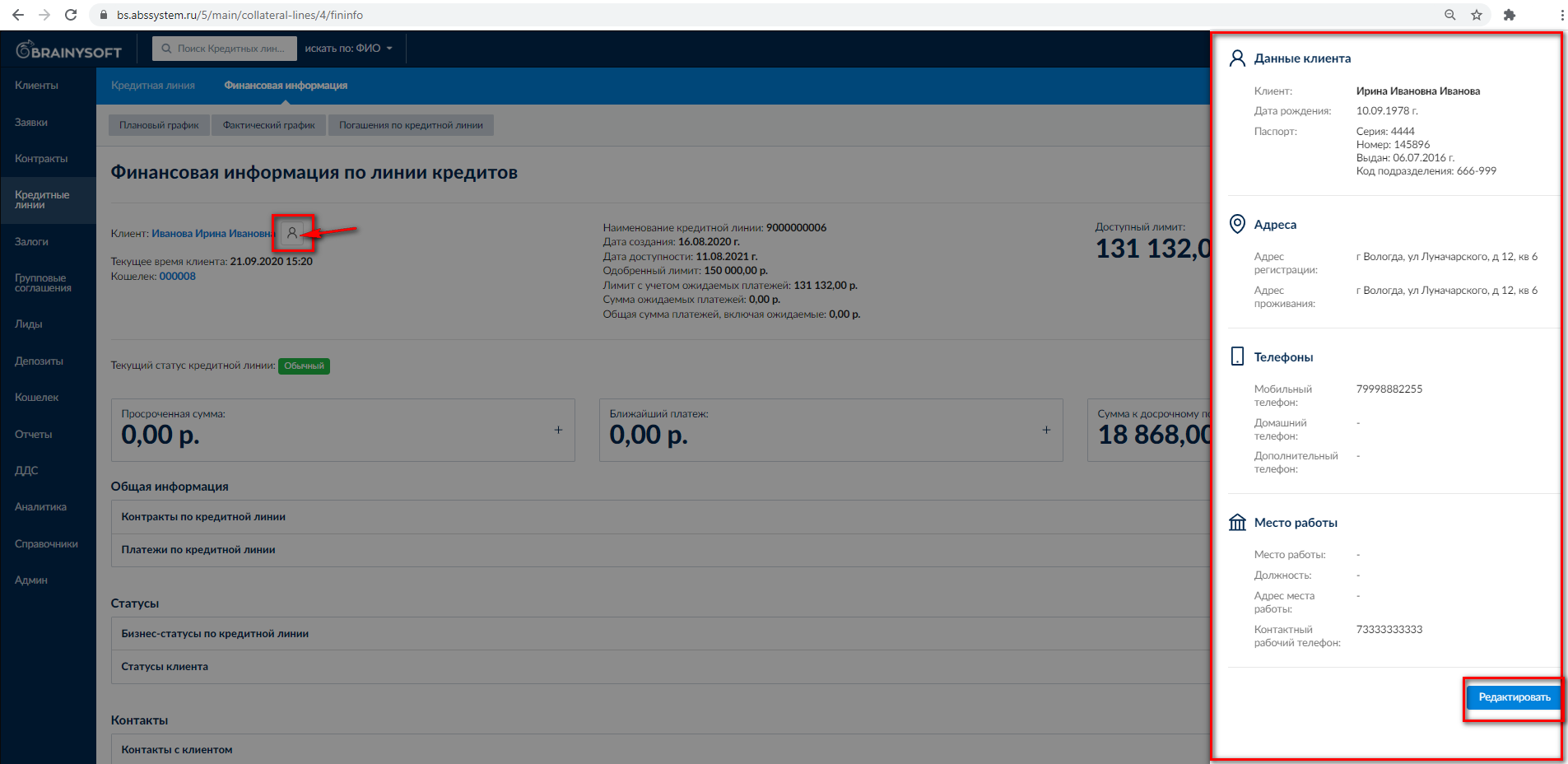
Viewing client data through financial info
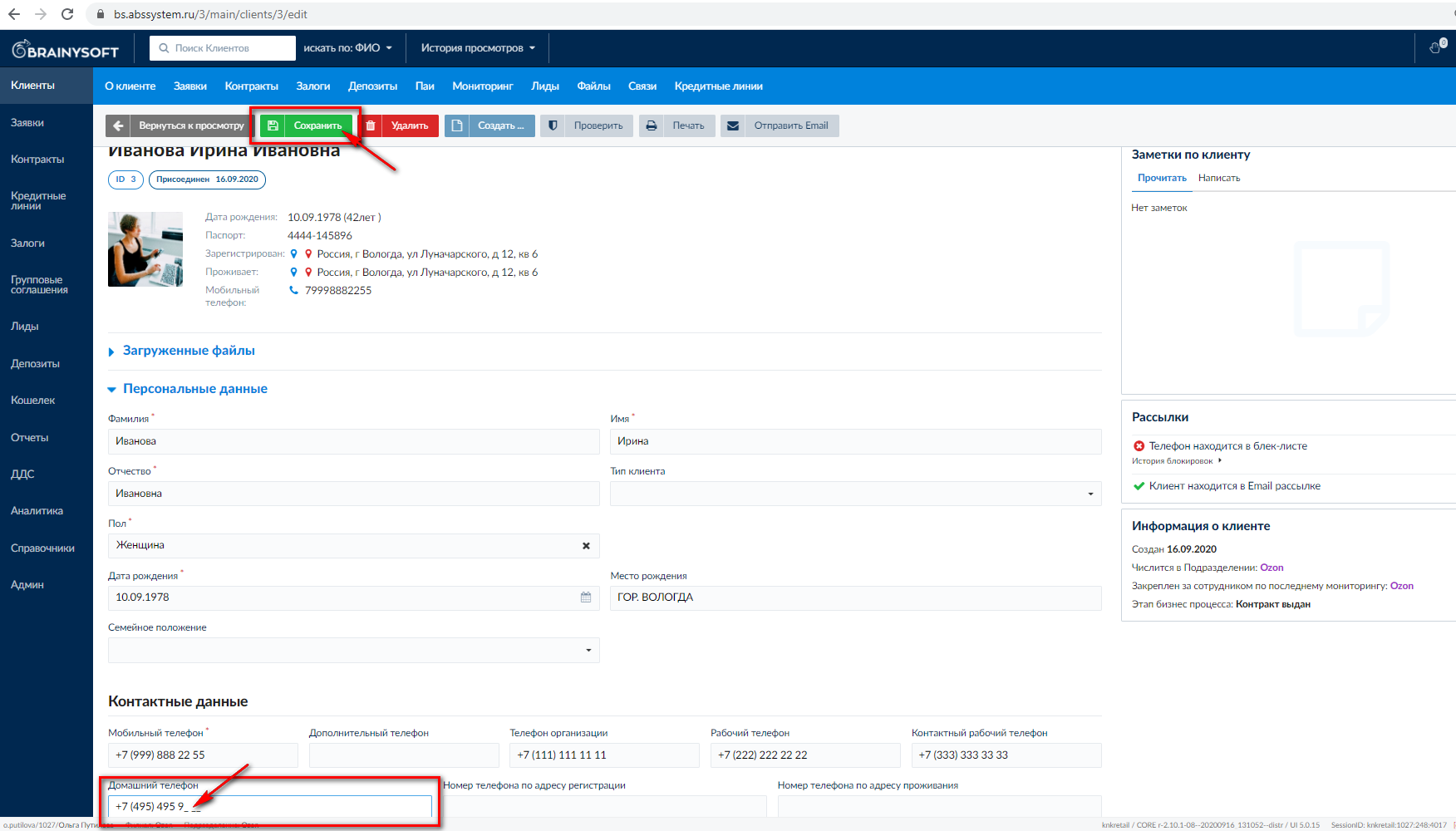
When clicking on the icon next to the client's full name, a pop-up window appears with basic client data: full name, date of birth, passport data, addresses, phones, work data. With access rights, you can go to edit mode for client data by clicking the "Edit" button. This navigates to the Client card.
After editing client data, you must click the "Save" button.
Planned Schedule
The planned schedule is calculated at the time of issue for contracts (planned payments). Since the client is provided with an installment plan, the "Interest" and "Fees" columns contain only 0. "Principal" (principal debt amount) is summed across all active contracts by monthly payments.
The "Total" column shows the sum of Principal, interest and fees. For installment plans, it equals Principal – order cost.
The remaining debt is displayed in the last column.
Actual Schedule
The actual schedule is calculated considering funds already deposited by the client. Repaid tranches are displayed with zero values. With partial early repayment or partial return, the schedule (future payments) is recalculated. Therefore, Principal values may differ from planned schedule values. Columns are similar to the planned schedule.
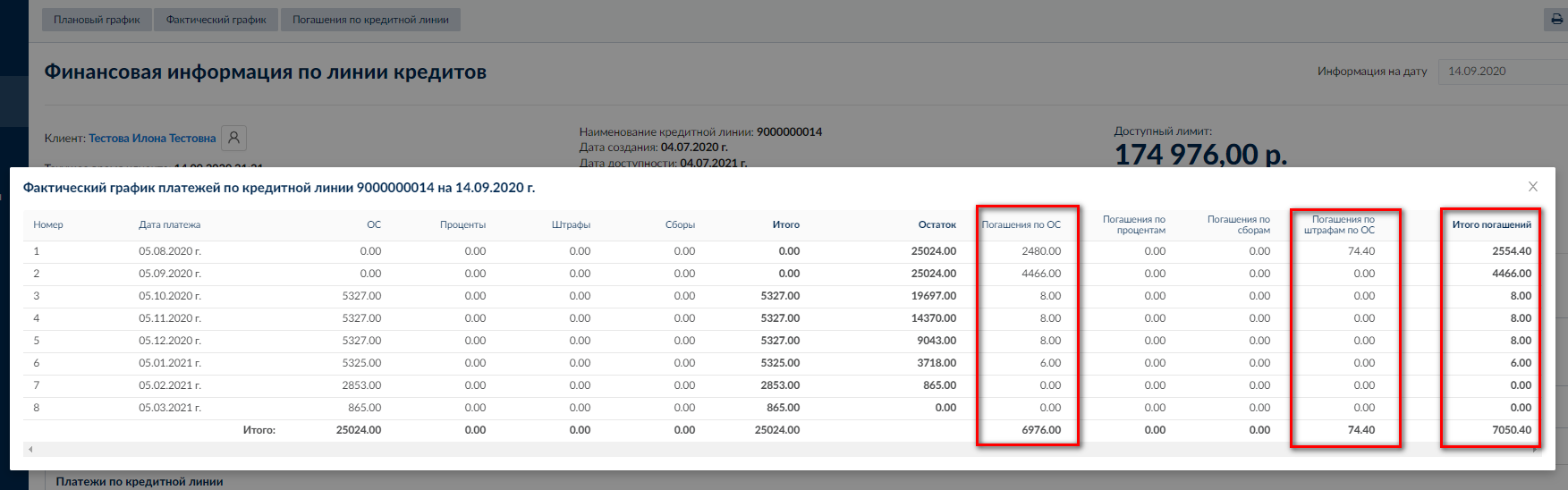
In the "Repaid Principal" and "Repaid Penalties" columns, amounts previously repaid by the client are displayed with indication of the date and number of overdue days with which the payment was repaid.
In this case, you can see that the deposited payments went to repay the overdue first payment, second payment, and penalty.
Credit Line Repayments
In a separate window "Credit Line Repayments", you can get information about all repaid client debt amounts by tranches (payment periods in the schedule).
Distribution of the payment received to the client's wallet occurs in the following order:
- First, the overdue principal amount is repaid.
- Second, the nearest upcoming payment is repaid.
- Third – penalties.
- The remaining payment goes to early repayment (with partial repayment, the sizes of future tranches are recalculated).
In the example below, let's consider the repayment order. The client's first payment is August 5. The second is September 5, etc.
As of September 4 (before the second payment), there was overdue debt and a penalty.
And on September 4, the client deposited 7,050.40 rubles.
Funds were distributed as follows:
First, 2,480 rubles – repayment of the August 5 payment.
Second, 4,466 rubles – repayment of the nearest upcoming payment.
Third, 74.40 rubles – repayment of the August penalty.
And 30 rubles remained, for this amount partial early repayment occurred with recalculation of future payments.
Current Credit Line Status
The credit line status can be: Normal or Overdue (indicating the number of overdue days).
The line is considered overdue if one of the line's contracts is overdue.
The number of overdue days is determined by status and actual days are also calculated
- Overdue by status - contract status can be changed to "Overdue" if the contract has debt on Principal or interest. As soon as the debt on Principal and interest is repaid, the contract becomes "Normal". The number of overdue days by status is calculated as the number of days between "Overdue" and "Normal" statuses. During the Overdue status – penalties are accrued.
- Actual overdue – considering that Penalties are repaid last, a situation may arise when the debt on Principal and Interest is repaid, but an unpaid Penalty for the previous period remains.
Actual overdue accounts for all types of unpaid debt, the number of overdue days does not depend on the status, but only on the presence of debt in the previous period.
Calculation of the number of actual overdue days occurs depending on the repayment date of the tranche on which there is unpaid debt.


Amounts Due for Repayment
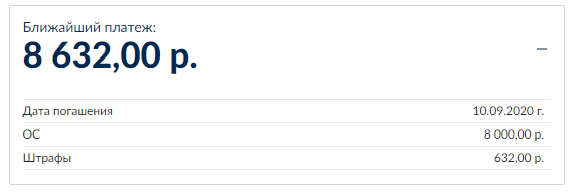
- Overdue payment – includes only the overdue debt amount: the amount for which the payment date has already passed.
- Nearest payment – calculated amount considering early repayments made on the next payment date
- Early repayment - amount required as of the current date to repay debt on the entire credit line

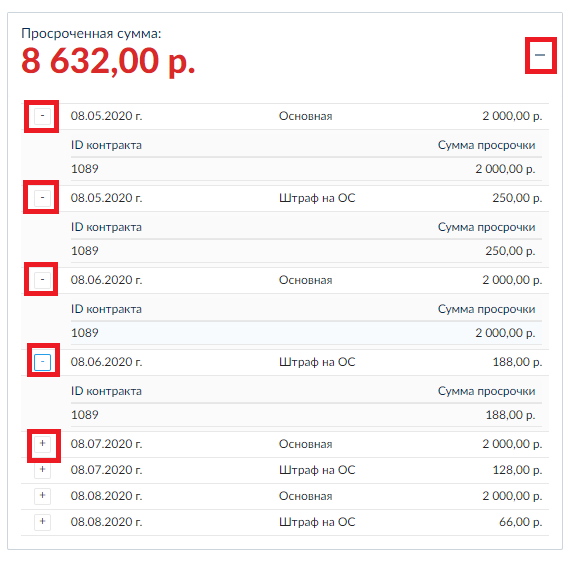
Detailed information on the breakdown of the amount by debt types or payment periods can be obtained by clicking the "plus" icon.
The overdue debt amount is indicated in maximum detail:
you can see which specific contract of the line has the debt, as well as by debt type breakdown and payment periods.
Blocks: "General Information", "Statuses", "Contacts"
On the right, there are also "+" icons that expand additional information.
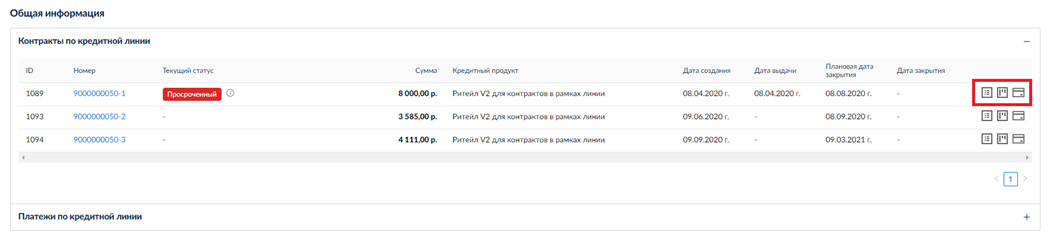
The "General Information" section contains details:
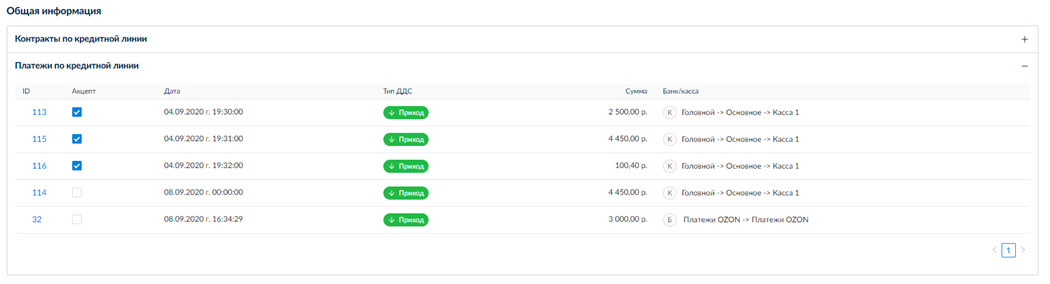
- List of all contracts (orders) within the credit line and their statuses, amounts, credit product name. For each contract, you can view separately the Planned and Actual payment schedule, as well as information on repaid debts.
- Payments made by the client within the credit line
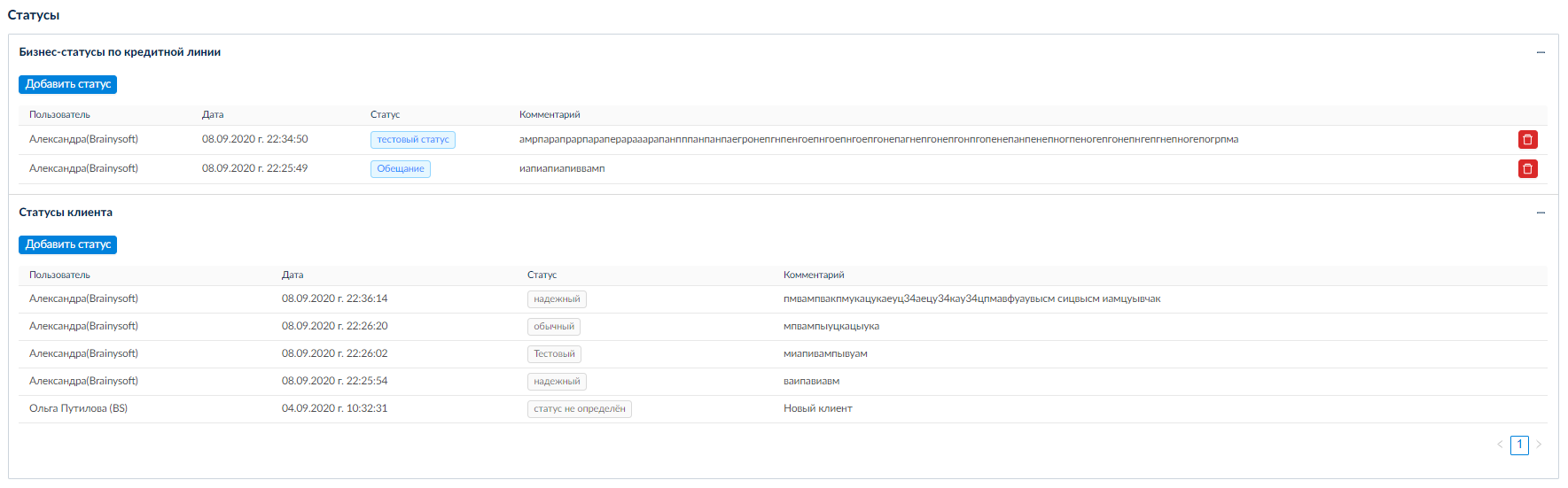
- Business statuses and client statuses with comments
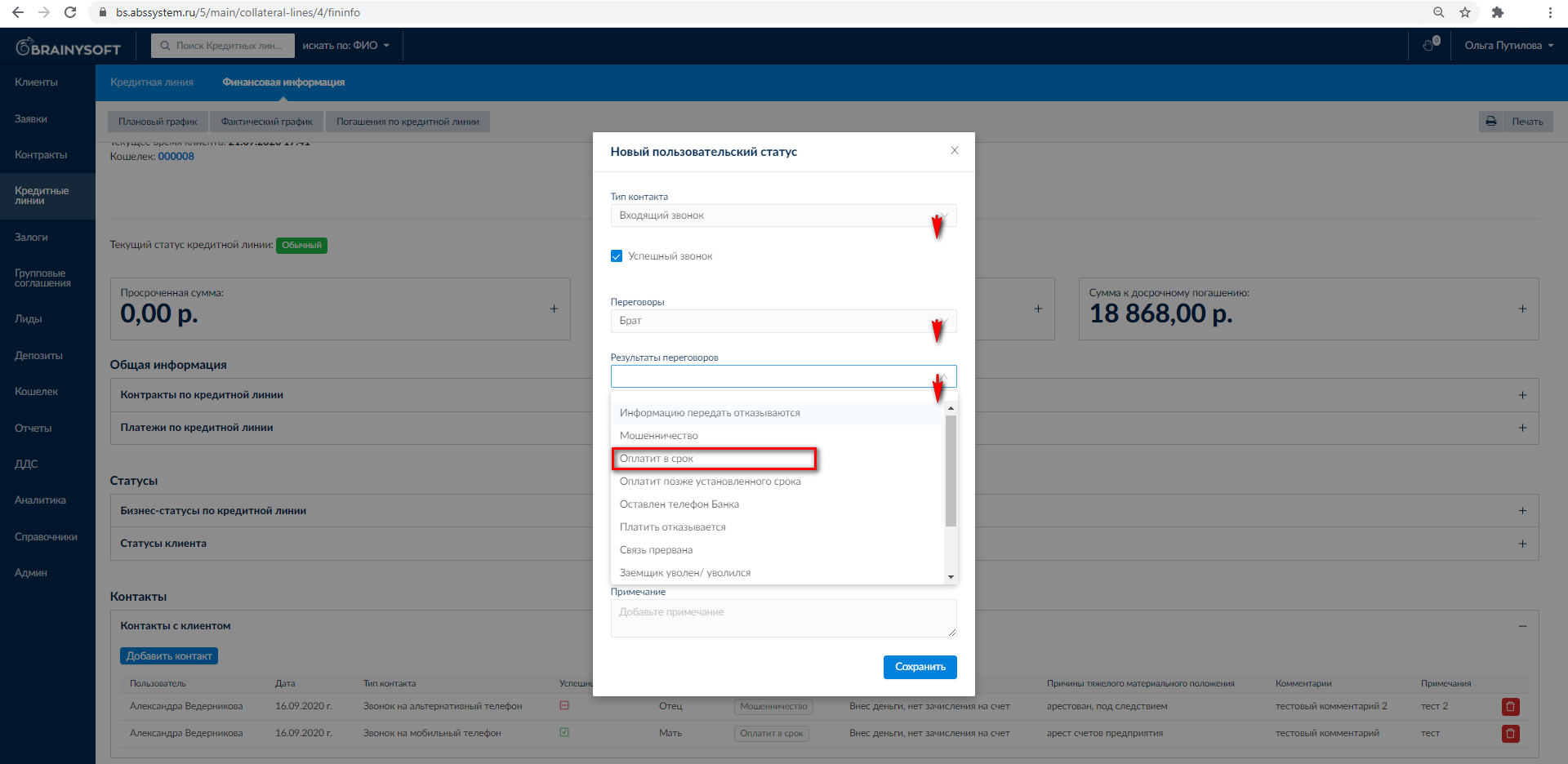
- Contacts with the client
Here employees fill in brief information about incoming and outgoing calls about the client and their results. Information is filled from dropdown lists (from which phone / to which phone the call was made, with whom negotiations were held, reasons for non-payment / difficult financial situation), additionally comments and notes can be indicated.
This section will allow you to get information about previous inquiries/calls about the client.

If it is necessary to provide more detailed information on a specific client purchase (for example, during a return), or on their payments, wallet balance, etc., you can open the page with the desired contract or client wallet in a new tab.
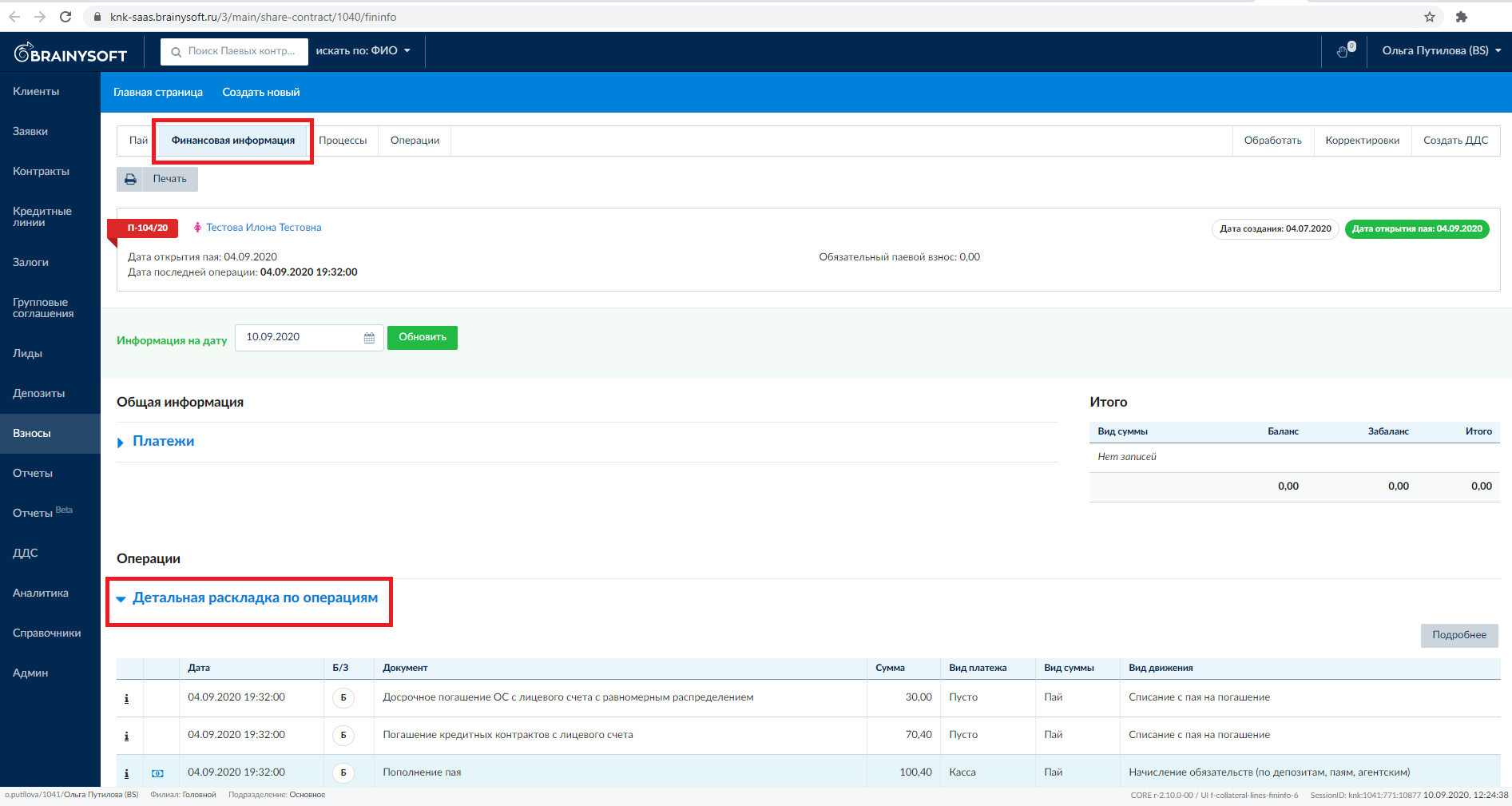
The contract and wallet also have a "Financial Information" section. Financial information for the contract contains "Detailed breakdown by operations".
For the wallet:
Financial information for the contract:
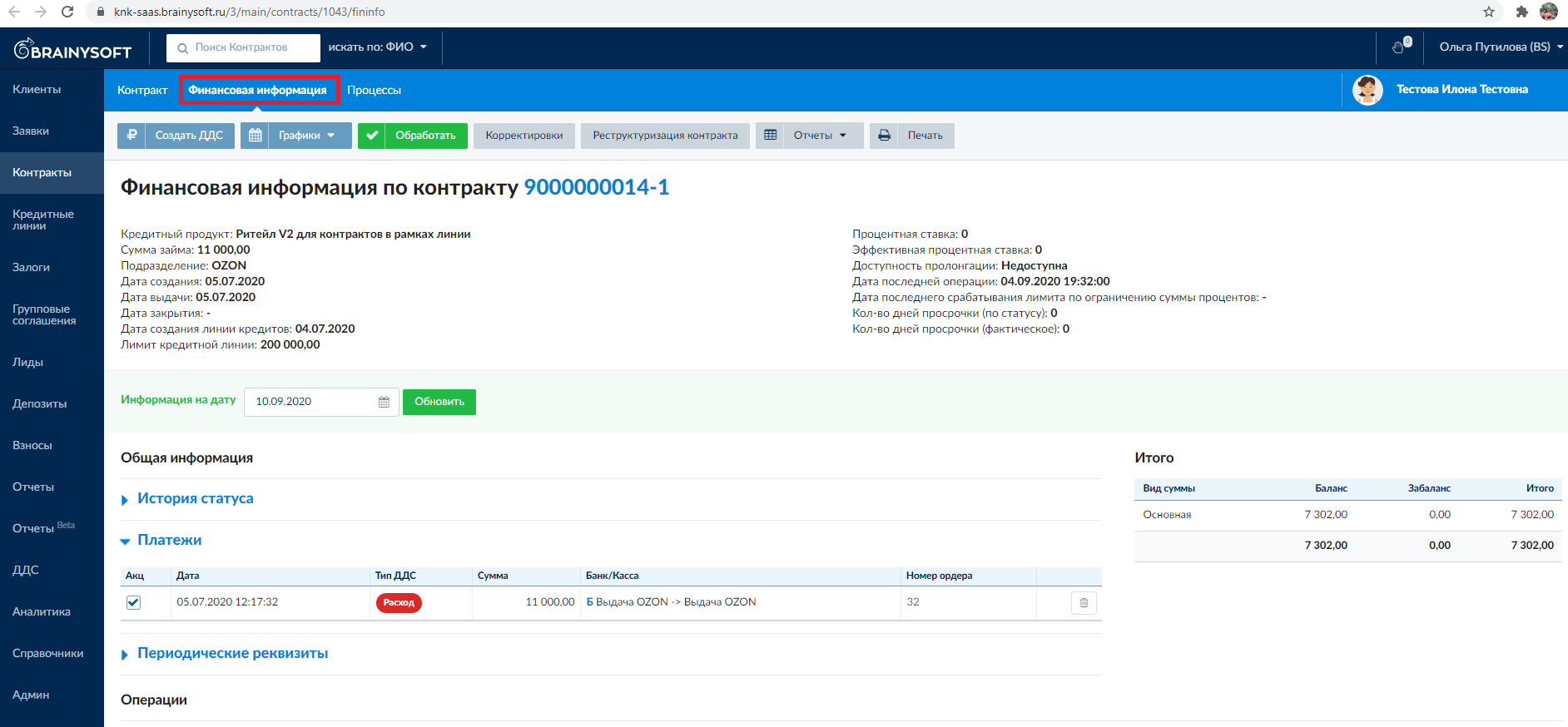
Contains information: Schedules, Statuses, Payments, separate reports on accrued debts with breakdown of debt formation, Adjustments section – for performing separate operations: "Reversal", "Write-off", "Contract Cancellation", etc.
Detailed breakdown by operations:
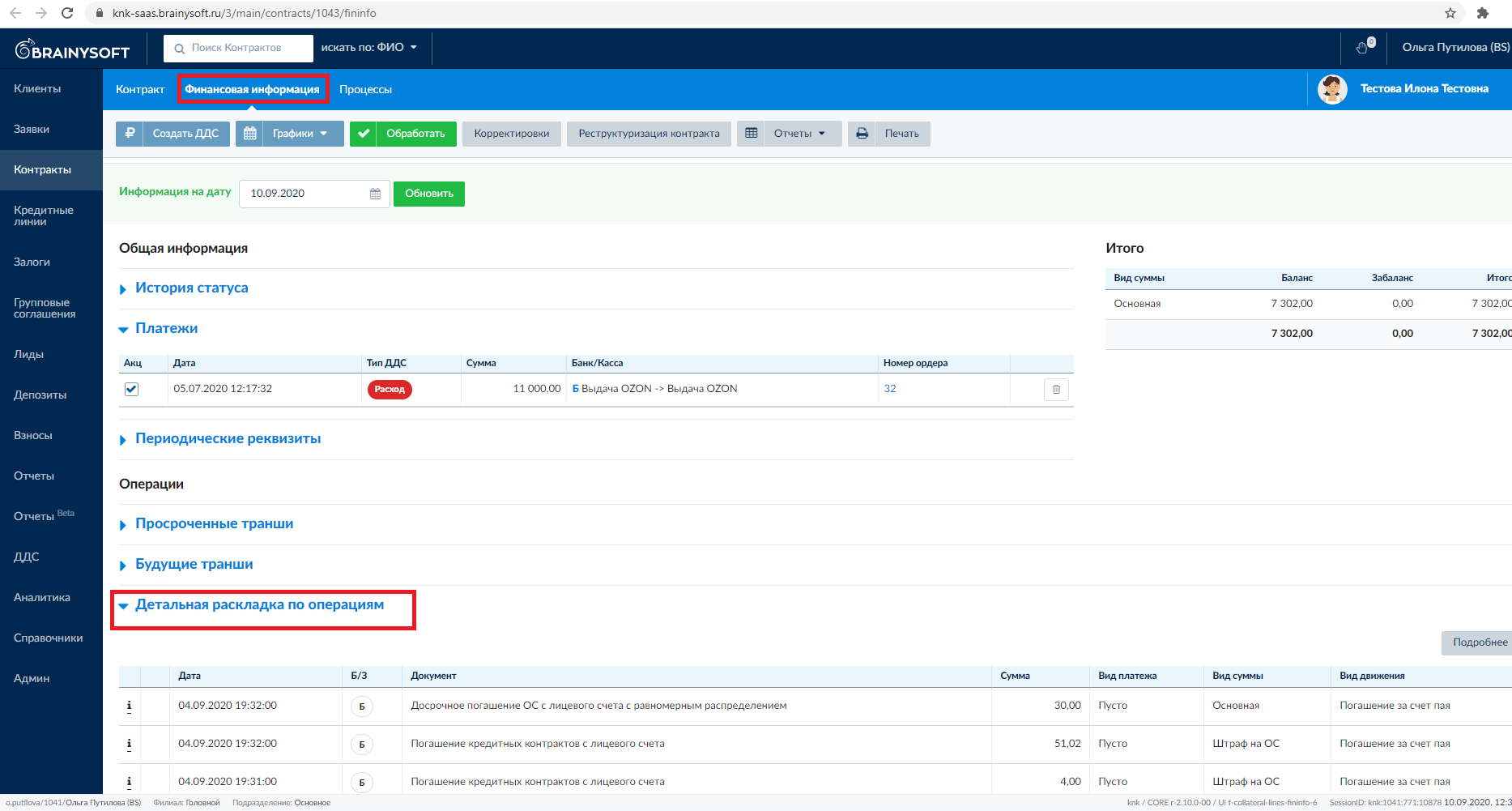
Payment Schedule Calculation, Repayment Order, Recalculation for Early Repayment / Return
Schedule Calculation
With each client purchase within the credit line, a new contract is formed.
A separate payment schedule is formed for each contract, but within the line, all payment schedules are summed into one general schedule.
If there are active contracts on the credit line, each new Payment Schedule will be calculated with reference to payment dates from the last active contract, i.e., all schedules must have the same payment date calculated.
The first payment day equals the day of the first order date in all subsequent months. If any month does not have such a date, the payment date in that month will be the last day of the month.
The purchase amount is divided by the number of installment months. Then the payment is rounded up to full rubles. The last payment in the contract schedule may be less than other payments and may have kopecks.
Example of payment schedule for the first order of 11,000 rubles for 6 months, issued on July 5.

If the second or subsequent order is placed on a date that does not coincide with the day of the first order, then the first payment amount is recalculated depending on the number of remaining days until the nearest payment date (proportionally to the number of days).
And the remainder of this payment is transferred to an additional payment (there will be an additional month in the schedule).
Example of payment schedule for the second order of 10,000 rubles for 6 months, issued on July 24.
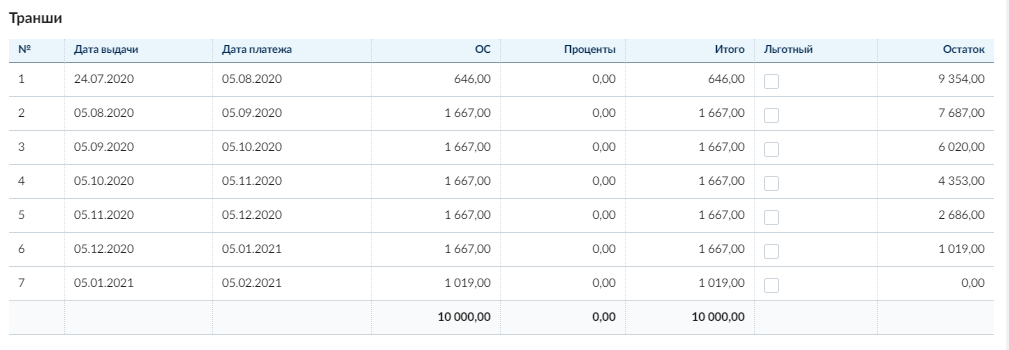
If the client has repaid the amounts of all purchases (all contracts), penalty amounts for overdue (if any), and all contracts within the credit line are closed, then with a new purchase, payment dates for the new contract will be calculated from the new purchase date.
Calculation details:
When forming the second order, it is necessary to determine the nearest payment date from the existing order. And distribute the amount for the first payment proportionally to the remaining days until the payment date.
Example 1 (for simplicity, the number of days in a month is always 30 in the example):
First order purchased on 01/10 equals 6000
Second order purchased on 02/25 equals 6000
| Order Amount | 01/10 | 02/10 | 02/25 | 03/10 | 03/30 | 04/10 | 05/10 | 06/10 | 07/10 | 08/10 | 09/10 |
|---|---|---|---|---|---|---|---|---|---|---|---|
| 6000 | purchase 6mo | 1000 | 1000 | 1000 | 1000 | 1000 | 1000 | ||||
| 6000 | purchase 6mo | 500 | 1000 | 1000 | 1000 | 1000 | 1000 | 500 | |||
| 6000 | purchase 1mo | 2000 | 4000 |
Calculation Method:
Divide the first order as usual
Second order:
divide as usual and get the first monthly payment
see how many days from the current date to the set payment date and take the amount proportional to the number of days (between 02/25 and 03/10) and set it for payment on the nearest payment date
transfer the remainder of the first payment to the payment date after the last payment
additional condition: if the second-to-last (adjusting) payment is less than other payments - increase it to the size of other payments.
Example 2 (for simplicity, the number of days in a month is always 30 in the example):
| Order Amount | 01/10 | 02/10 | 02/25 | 03/10 | 04/10 | 05/10 | 06/10 | 07/10 | 08/10 | 09/10 | Comment |
|---|---|---|---|---|---|---|---|---|---|---|---|
| 6000 | purchase | 1000 | 1000 | 1000 | 1000 | 1000 | 1000 | ||||
| 5999 | purchase | 500 | 1000 | 1000 | 1000 | 1000 | 999 | 500 | intermediate calculation | ||
| 5999 | purchase | 500 | 1000 | 1000 | 1000 | 1000 | 1000 | 499 | final calculation |
Repayment Order
Payments received to the client's wallet (funds) are automatically distributed in the following order:
- first, overdue principal debt amounts are repaid (if any).
- second – the nearest upcoming payment.
- third – penalties for overdue (if any).
- then early repayment of future payments occurs.
At the same time, if the client has several contracts, within one payment, funds are distributed across contracts in chronological order of their issue.
Let's consider the repayment process step by step.
First, the client has overdue debt, penalties and has not deposited anything yet.
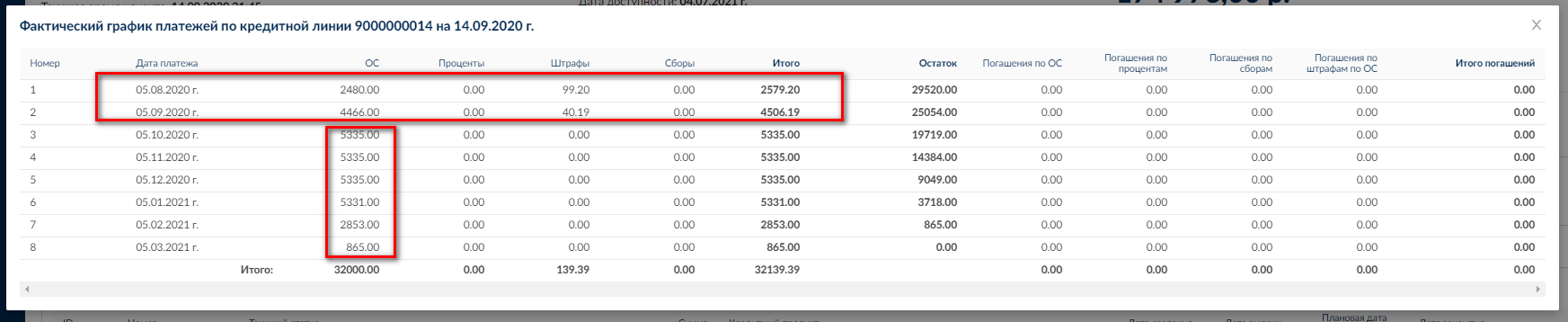
Then the client deposited the amounts of two past payments (principal debt only) plus an additional 20 rubles. Total 6,966 rubles.
The overdue principal debt (previous payments) was repaid and 20 rubles went to repay the nearest upcoming payment. Penalties remained unpaid.
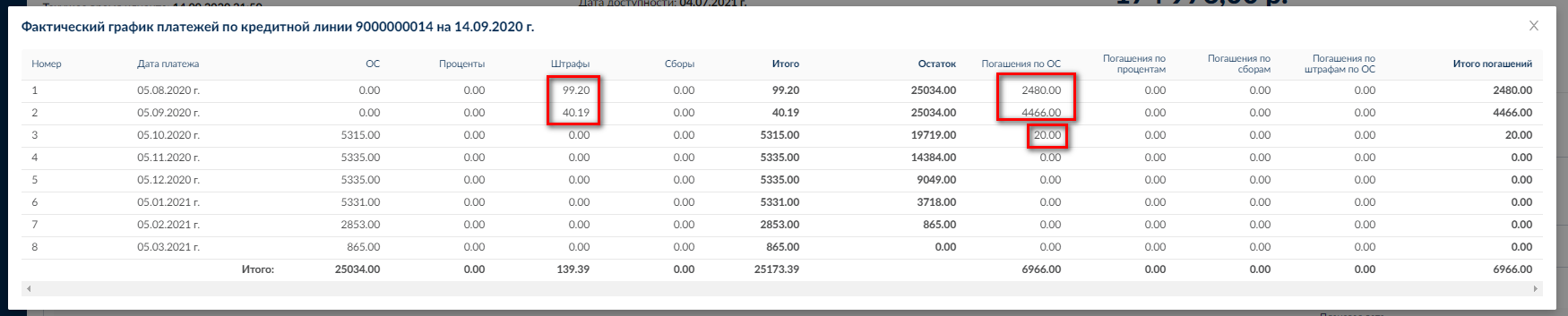
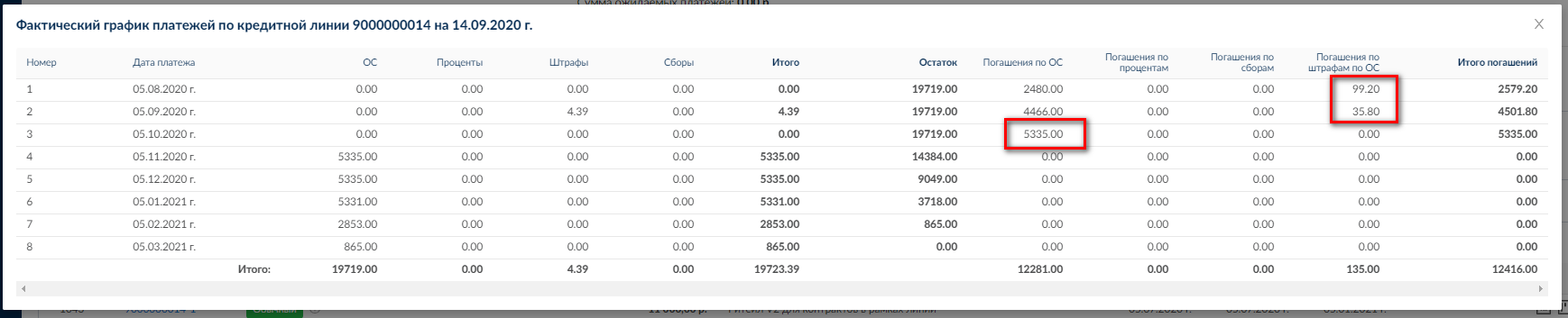
Then the client deposited the amount of the nearest upcoming payment (for October 5) plus an additional 135 rubles. Total 5,450 rubles. The nearest upcoming payment was fully repaid plus 135 rubles went to repay penalties.
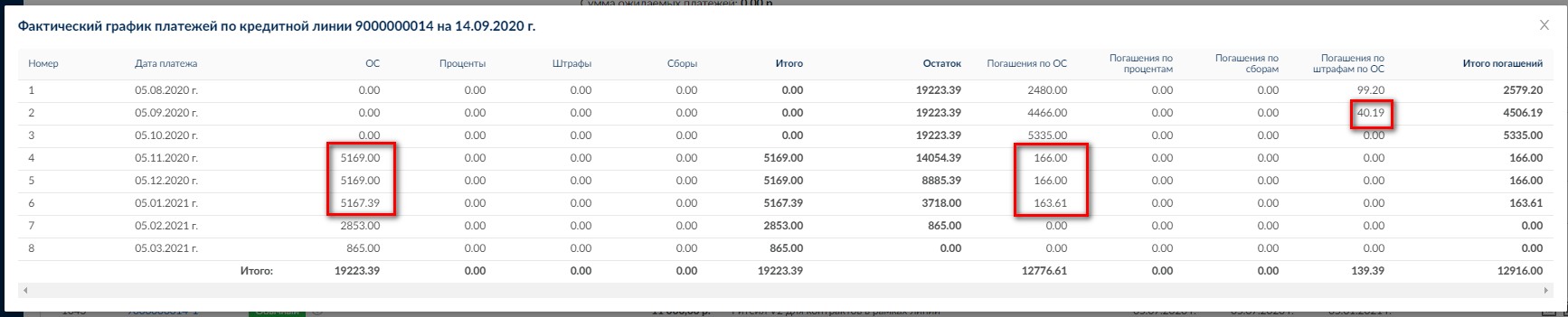
Then the client deposited another 500 rubles. The remaining penalty of 4.39 rubles was repaid, the remaining amount of 495.61 rubles went to partial early repayment on the first contract in chronological order. The payment schedule for this contract was recalculated, the remaining three payments on this contract slightly decreased. Accordingly, in the general payment schedule for the credit line, payments for November 5, December 5 and January 5 also decreased.
Schedule Recalculation for Early Repayment
Early repayment can be full or partial. The client does not need to declare the desire to repay early in advance. When replenishing the client's wallet, funds within the previously described repayment order are automatically distributed, including for early repayment of future payments.
At the same time, repayment occurs on contracts depending on their issue date (in chronological order, starting with the earliest).
When funds are received, it is checked whether they are sufficient for full repayment on the first contract. If yes, it is closed, then if there are still funds left, the next contract is partially or fully repaid.
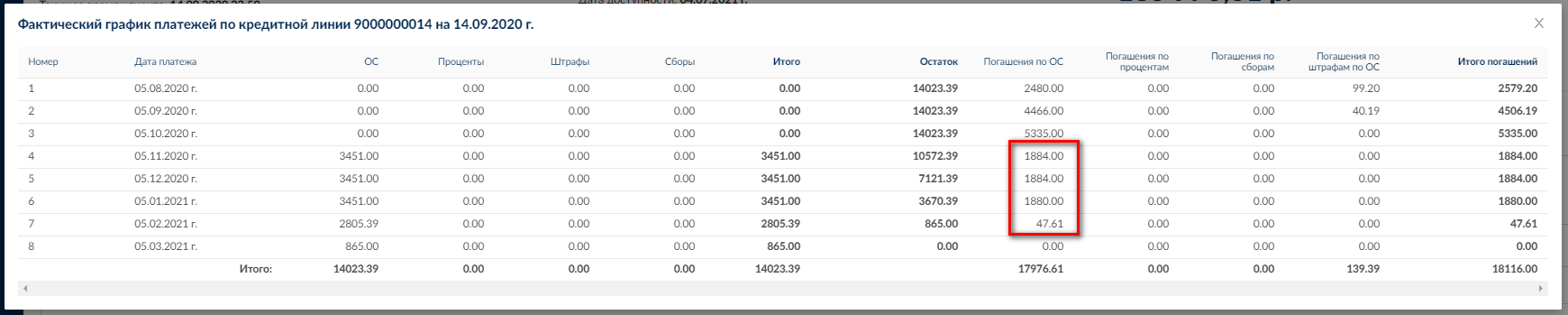
Let's look at the actual payment schedule for the first contract:

We see that for full repayment on the first contract, it is necessary to deposit 5,002.39 rubles.
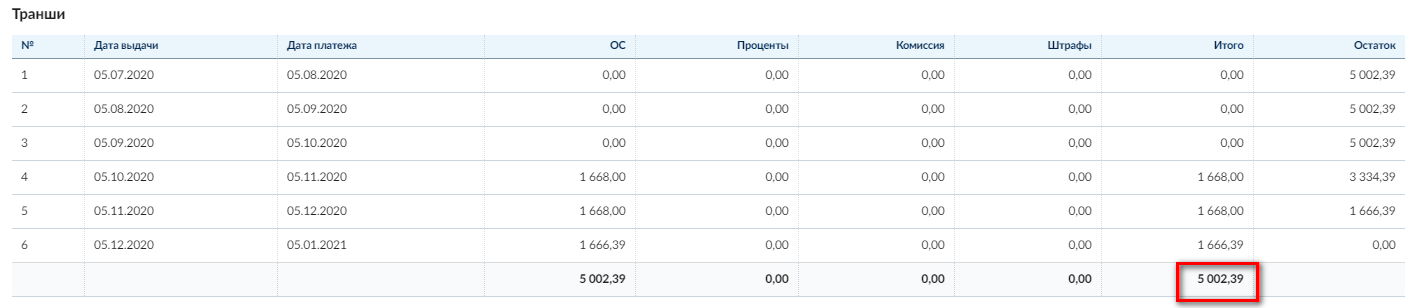
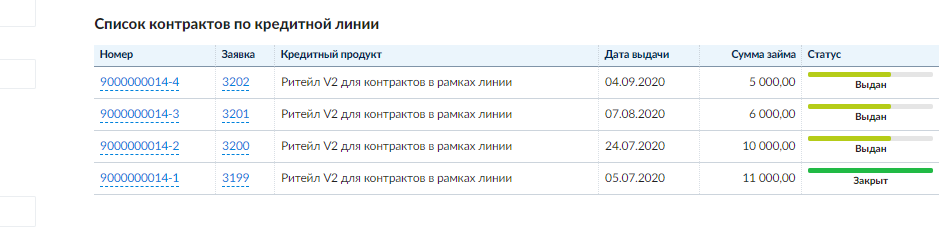
Let's say the client deposits 5,200 rubles. The actual schedule is recalculated for the credit line, while the first contract is closed, payments on the second contract are also recalculated and become smaller (by 197.61 rubles).
Full / Partial Product Return
First case - return when there were no payments yet. Possible situations:
- Partial or full return upon delivery and product handover
- Moneyback or warranty case (return after handover but before payment of the first payment)
Full return:
If the debt amount matches the return amount - repay the debt and close the contract.
Partial return:
If the debt amount does not match the return amount - recalculate the payment schedule for the new amount:
"Order Amount" minus "Amount of Returned Products" = "New Order Amount". At the same time, the number of payments does not change, the payment amount decreases.
The client purchased products for 5,999 rubles, then returned part of the products for 1,898 rubles. Schedule before return:

Schedule after return:

Second case - return when there were already payments
Possible situations:
- Moneyback or warranty case (return after handover, after payment of at least one payment)
Full return:
Close the contract and calculate the overpayment. The overpayment is returned to the client's wallet.
Then the overpayment is used according to the repayment order for other contracts if they exist, or the overpayment remains in the wallet if there are no other contracts currently.
Partial return:
First step:
Recalculate the payment schedule for the new amount:
"Order Amount" minus "Amount of Returned Products" = "New Order Amount". And generate a new payment schedule for the contract (payment amount decreases, term remains)
It is important that the planned payment schedule is also recalculated from the order date. And regardless of the date the client made the return, payment dates must match the planned schedule (before the return).
Second step:
Compare the actual amount previously deposited by the client with the expected payment amount according to the new schedule as of the return date and credit the difference according to the repayment order. At the same time, payment amounts according to the new schedule are already smaller, so the excess of the deposited amount will go to repay future payments and they will decrease even more.
The client purchased products for 5,999 rubles, then made the first payment of 1,000 rubles, then returned part of the products for 1,898 rubles. Planned schedule before return:

Actual schedule before return:

Planned schedule after return:

Actual schedule after return:

To get detailed information on how funds were distributed on this contract after partial return, you can go to the contract –> financial information for the contract –> detailed breakdown by operations.
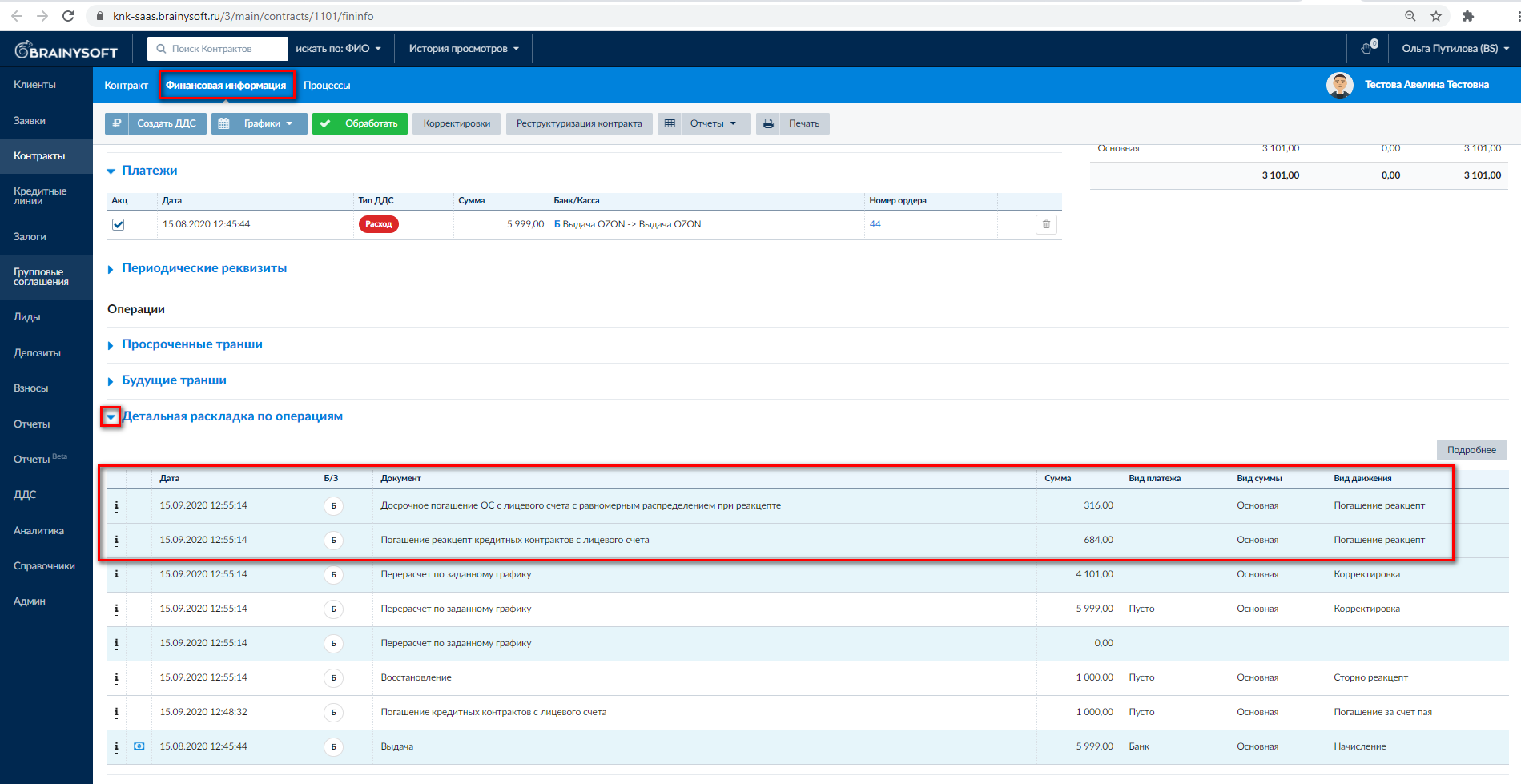
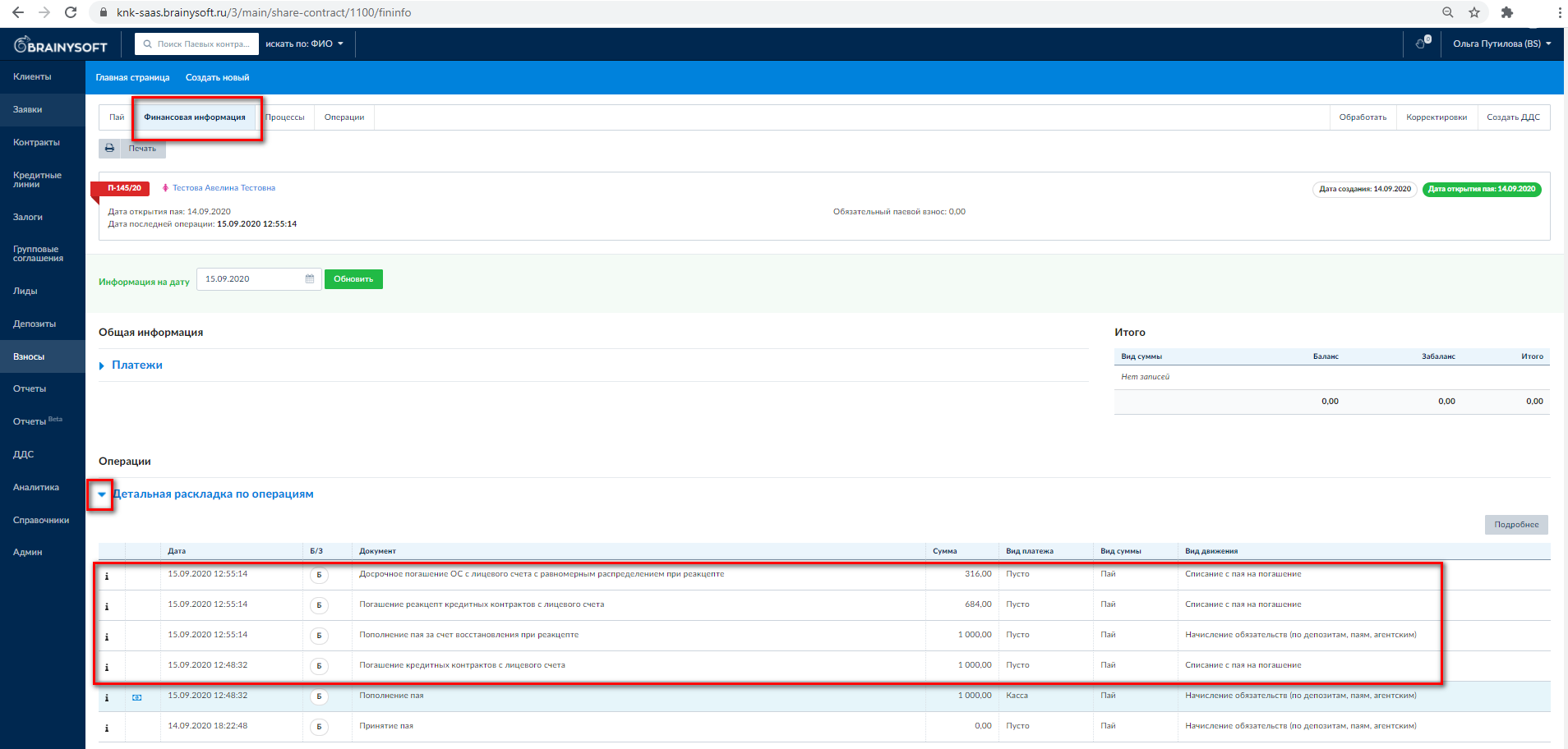
From bottom to top, operations performed on the contract are displayed, i.e., everything that happened with the contract: issue, repayment of the first payment of 1,000 rubles, upon return - payment restoration (to the wallet), schedule recalculation, again repayment of 1,000 rubles (of which 684 rubles – for the first payment according to the new schedule and 316 rubles for early repayment of future payments).
Information about fund distribution upon return can also be viewed in the Detailed breakdown by operations in the Wallet:
Viewing Information About Client Data Changes
The client card has the ability to download and view the "Audit" report.
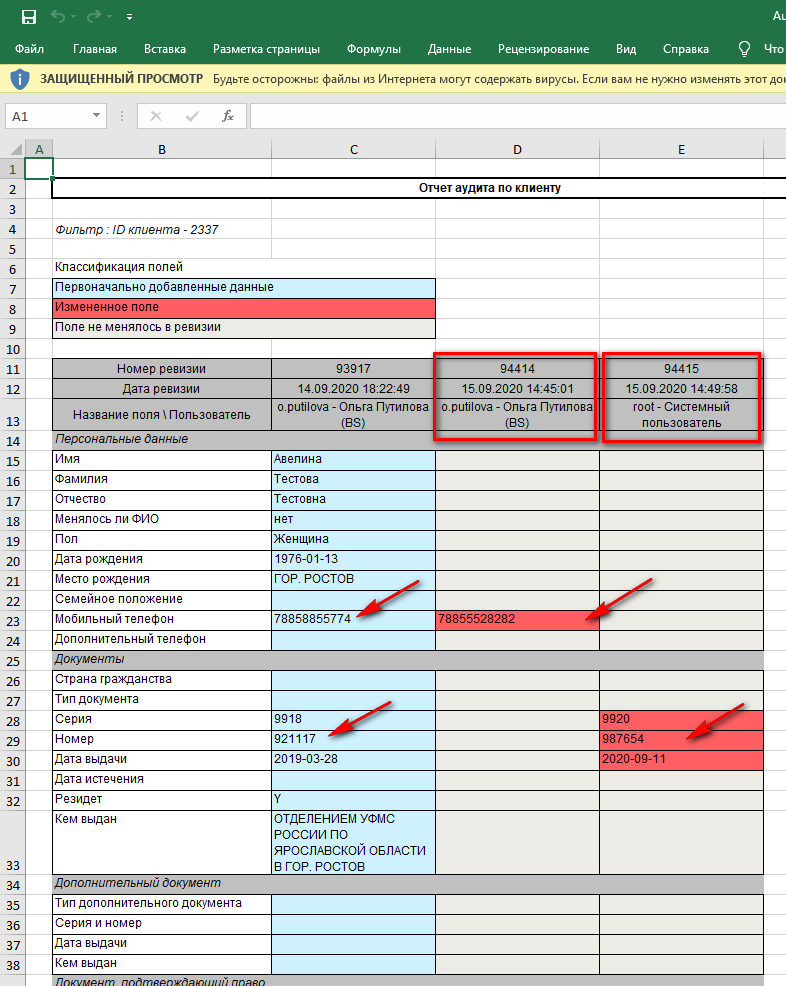
This report allows you to get information about changes to client data, including detailed information about the user and time of changes.
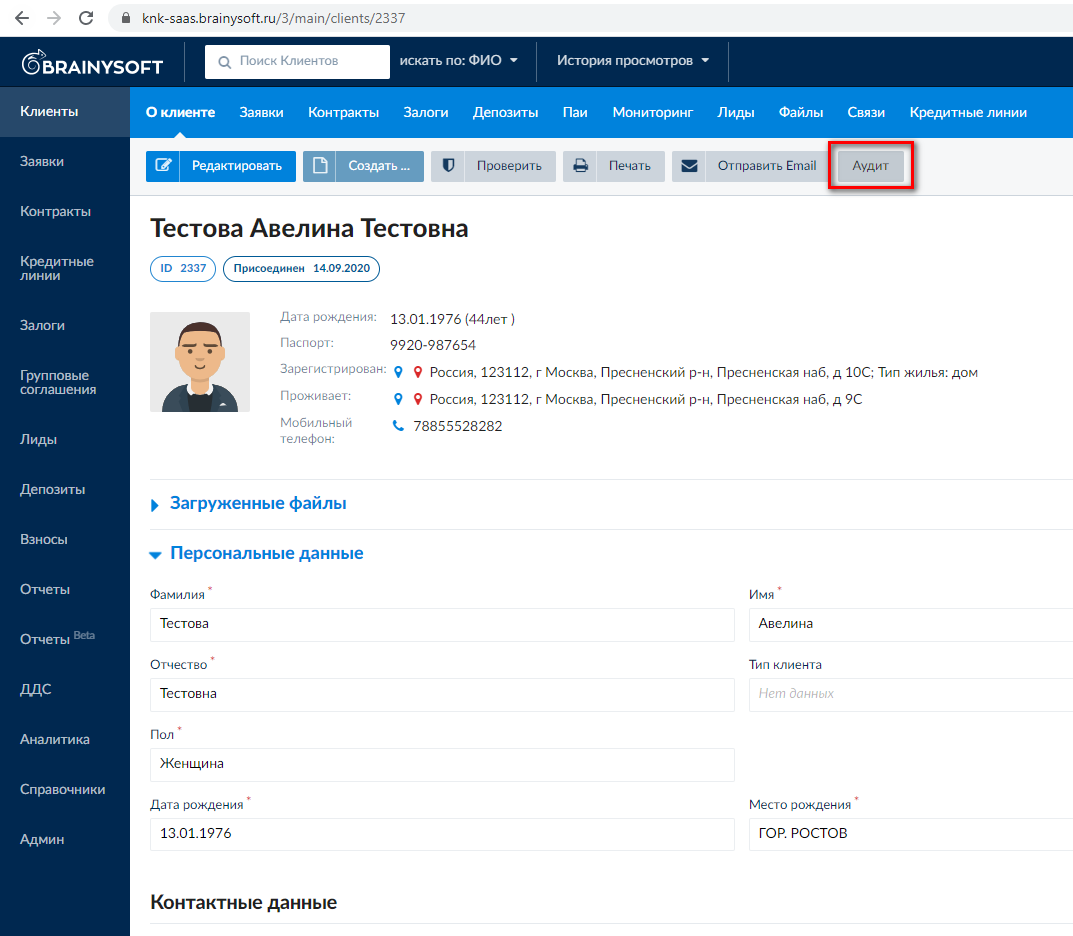
When clicked, the download occurs automatically. The column highlighted in blue indicates information entered at the client creation stage. (i.e., this is the client's initial data). Further, all changes made are recorded in subsequent columns. If changes were made through the interface – the user who made them is indicated. The date and time of changes are also indicated. If changes were transmitted via API, the system user / Adapter is indicated.
Reports, Directories, Admin
This information is available only with appropriate access rights.
Reports
To work with reports, go to the "Reports" menu. Then find the required report in the search bar or select the desired report from the list.
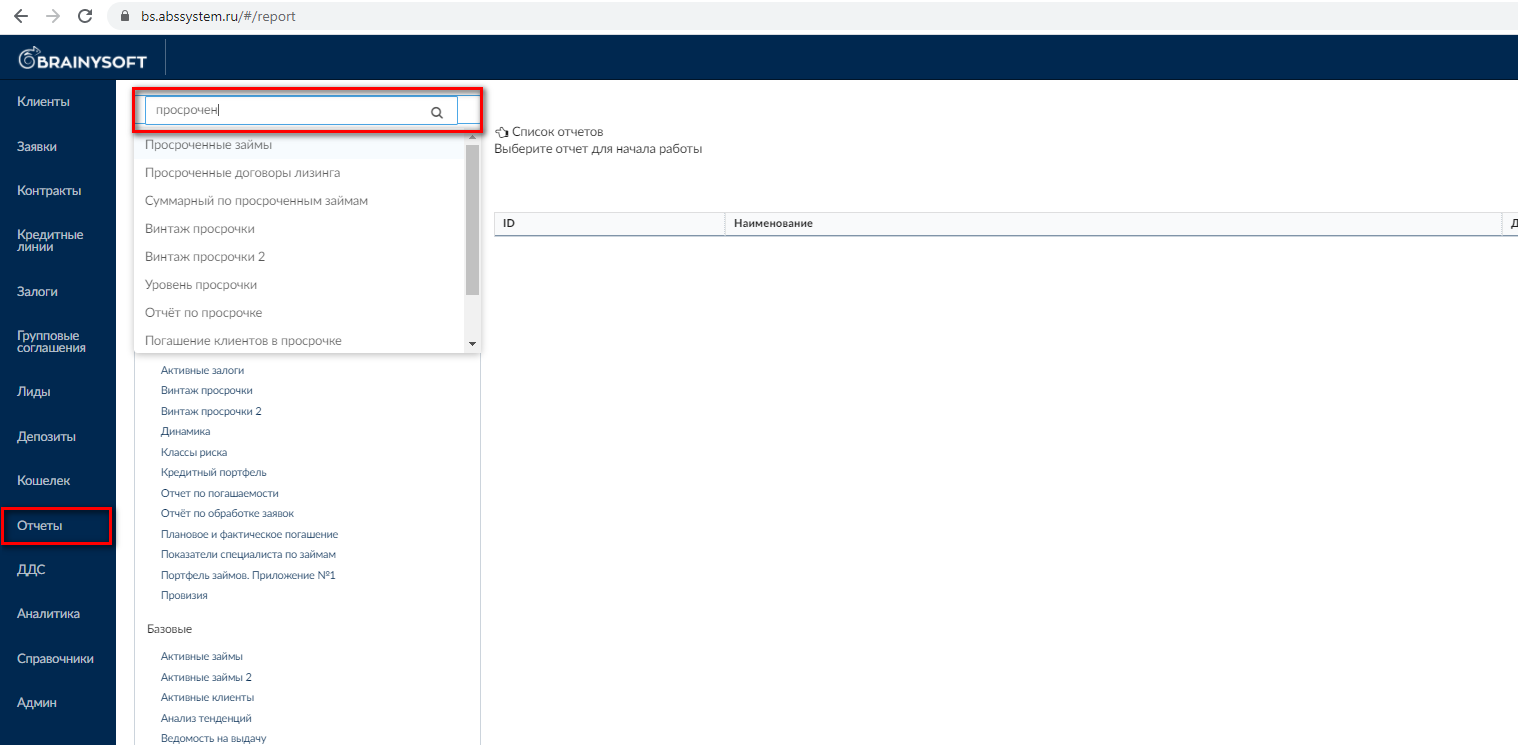
Reports are divided into groups: Analytical, Basic, Overdue, Summary. A list of all reports is provided at this link, clicking on the name of each report will open an article with a description of the report content and instructions for its generation.
Directories
The "Directories" menu is necessary for adding, editing and deleting items in dropdown lists in the system, for example in client card or application fields, in collections of client statuses, business statuses, contacts, etc.
To work with directories, go to the "Directories" menu. Then select the desired directory from the list.
Let's consider the example of the "Negotiations" directory.
After selecting the desired directory, you can view its element (by clicking the "Eye" button), then you can return to viewing the list of elements, edit or delete the element. You can also edit an element by clicking the "Pencil" button, or add a new element by clicking the "Create" button.

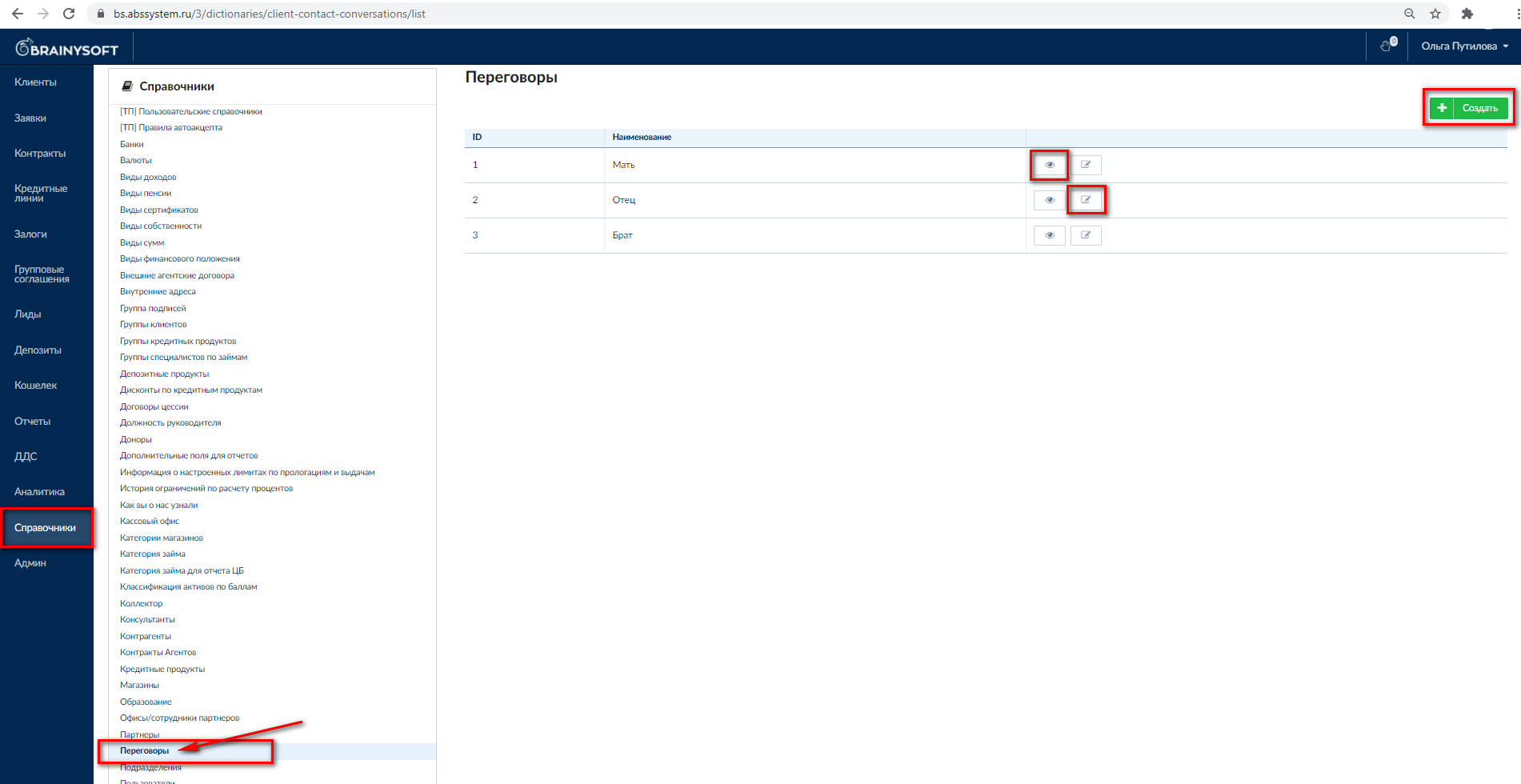
Elements of the directory indicated in this example are used for selection from a dropdown list when adding a new contact to the financial information for the credit line. With changes in the business process, a user with certain access rights can configure these elements.

Elements of other dropdown lists (other Directories) are configured similarly.
Admin
In the "Admin" menu section, scoring schemes, decision-making systems are configured, roles are created and edited (access rights for employees of various departments), access is provided to new users, you can view the history of exports to 1C, etc.
Let's consider the example of role configuration and providing access to a new user.
A role is like a list of positions of your employees, for example: director, lawyer, collection service specialist, etc. Since each employee has their own responsibilities for working in the program, accordingly they are assigned certain rights and access to system objects in "Roles" (report generation, directory editing, cash flow operations, etc.).
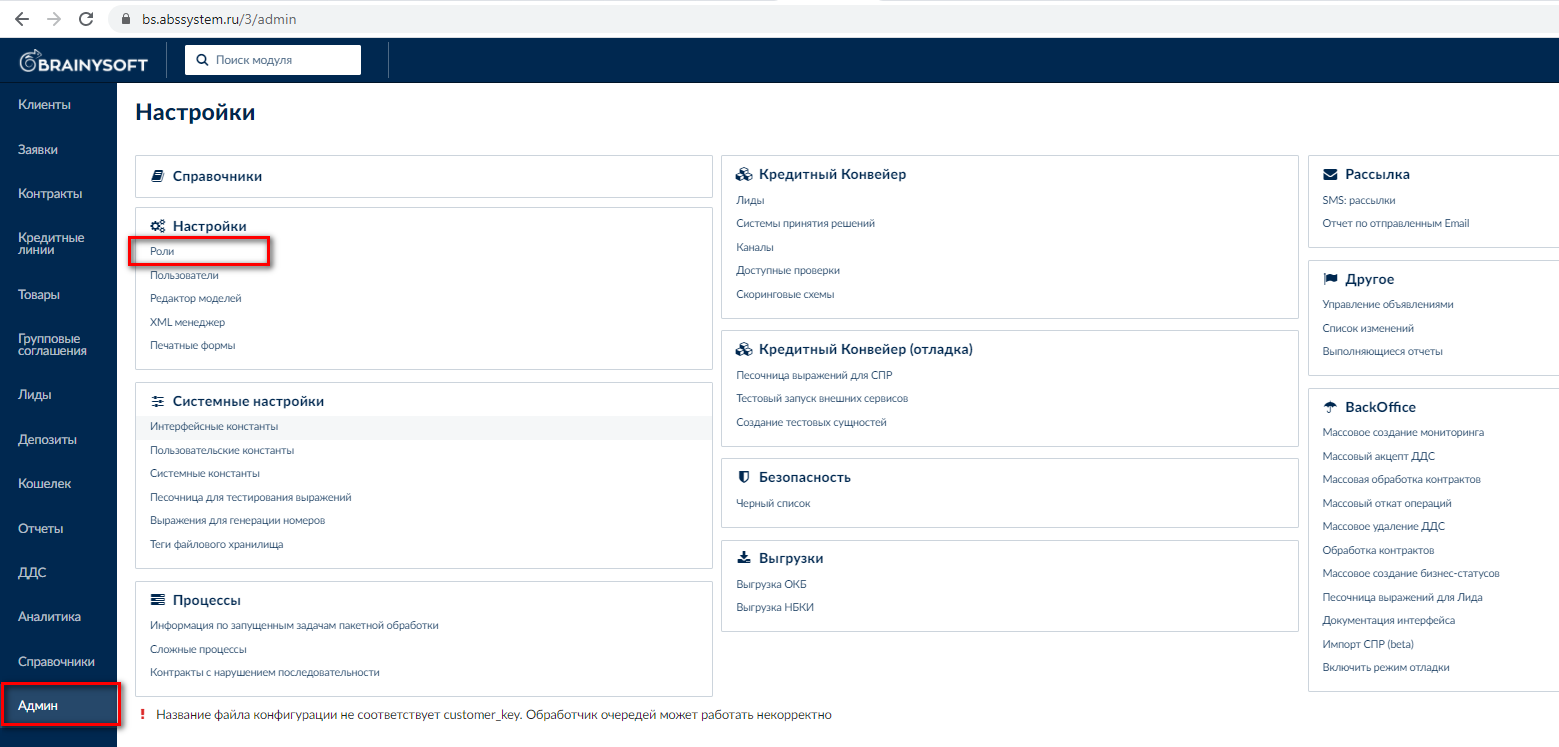
To create a new role, go to the "Admin" menu item and in the "Settings" section select "Roles".
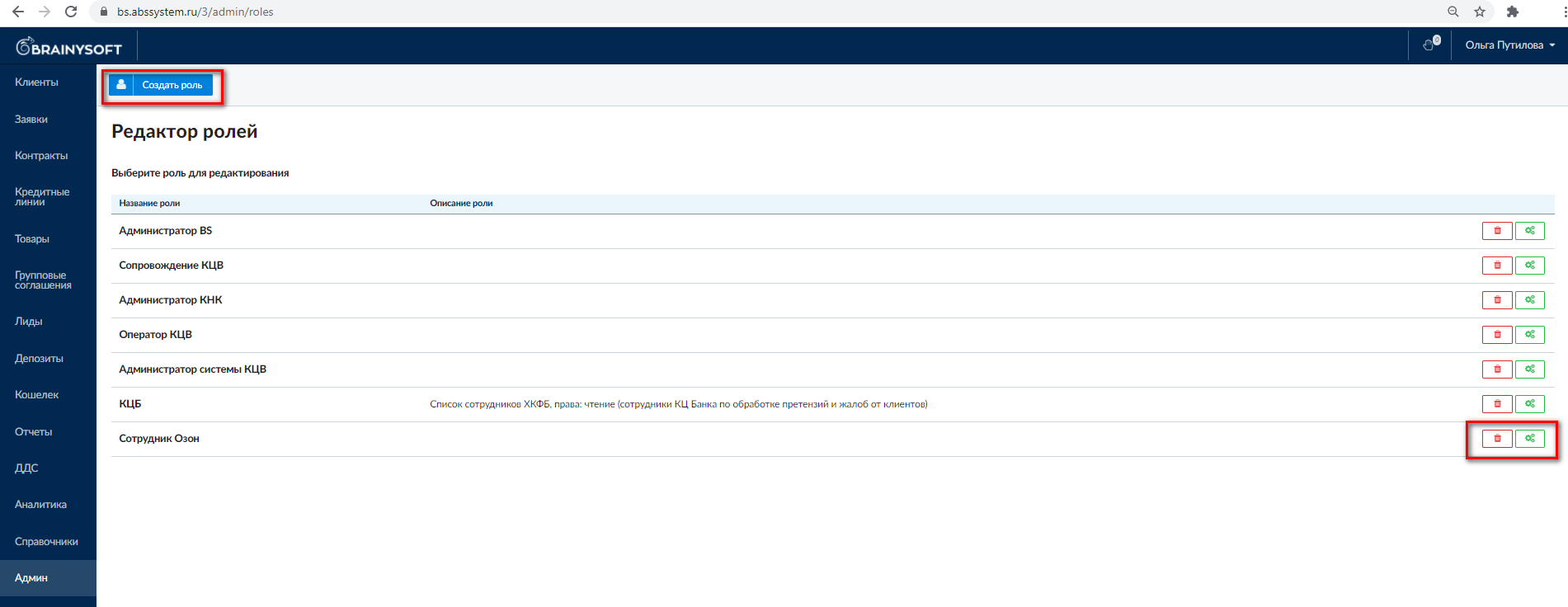
The "Role Editor" will open before you. The page shows a list of already existing roles, on the right are buttons for editing the role or deleting it. To create a new role, click the "Create role" button.
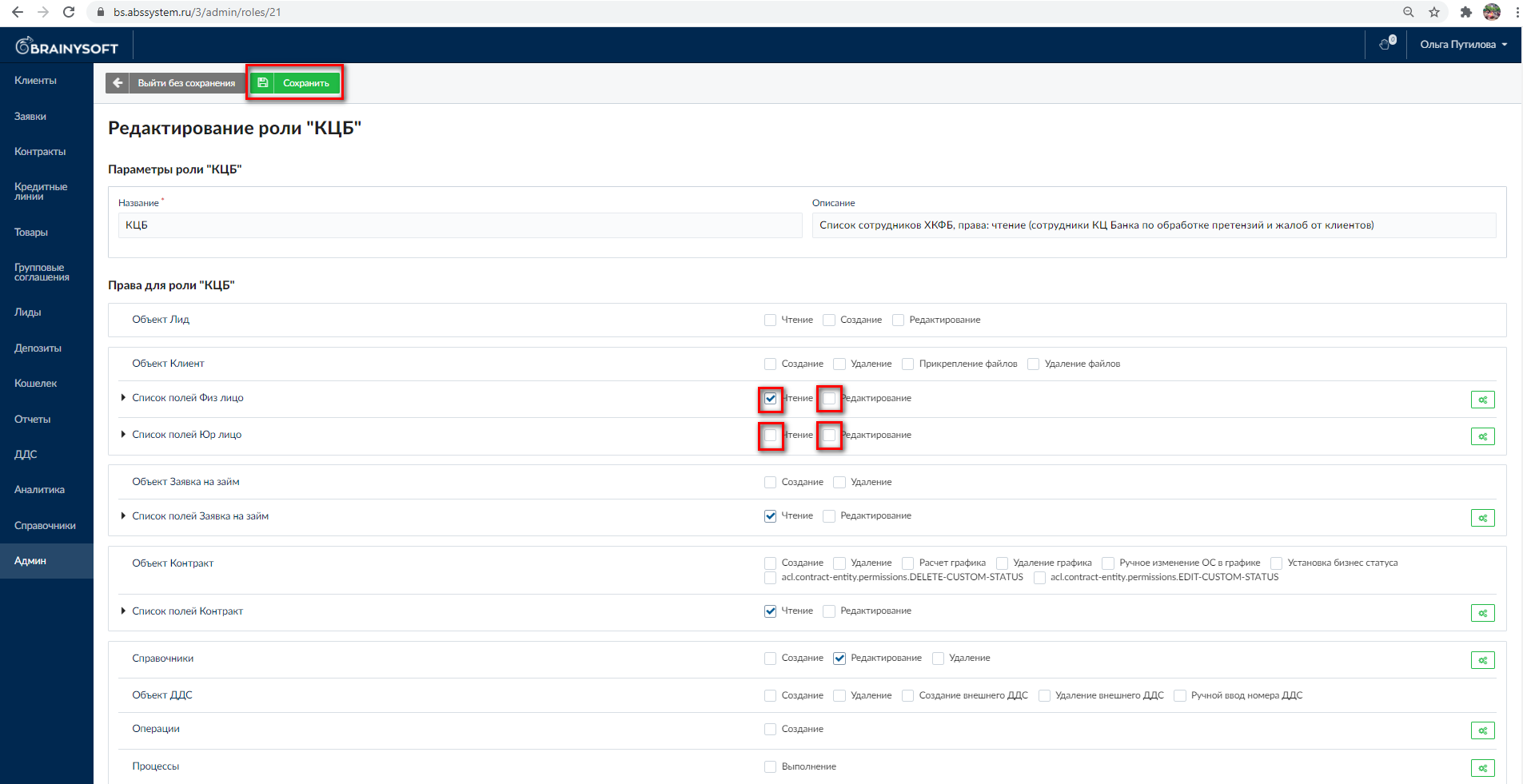
After that, the role editor menu opens, where access for viewing, editing (creating), deleting objects is specified. Access for performing operations, documents, processes is also set here.
At the end, you need to click "Save".
After the necessary roles are created in accordance with the business process, we provide a specific user with access with access rights corresponding to this role.
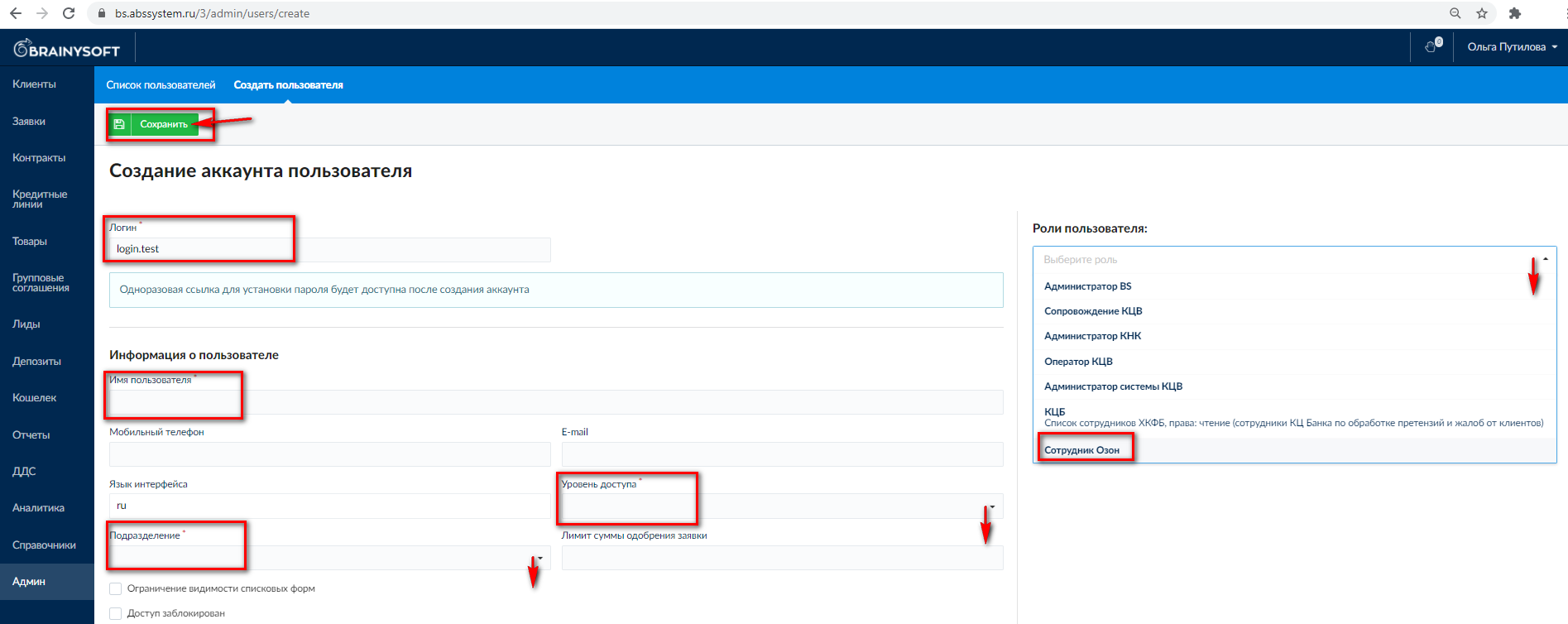
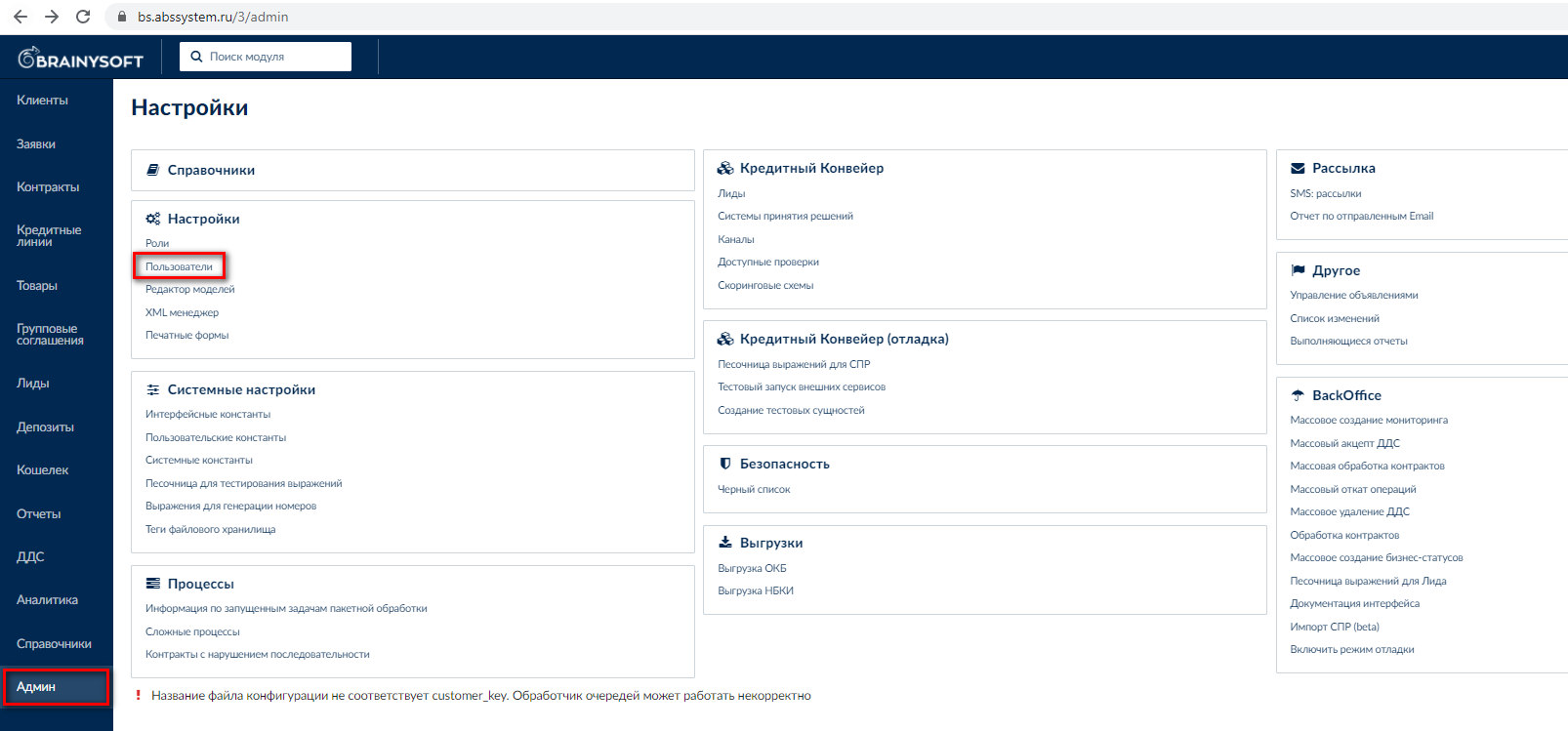
To do this, go to the "Admin" menu item and in the "Settings" section select "Users".
On the right are buttons for editing existing user data, viewing their access and deleting.
You can click the "Create user" button to add a new one.
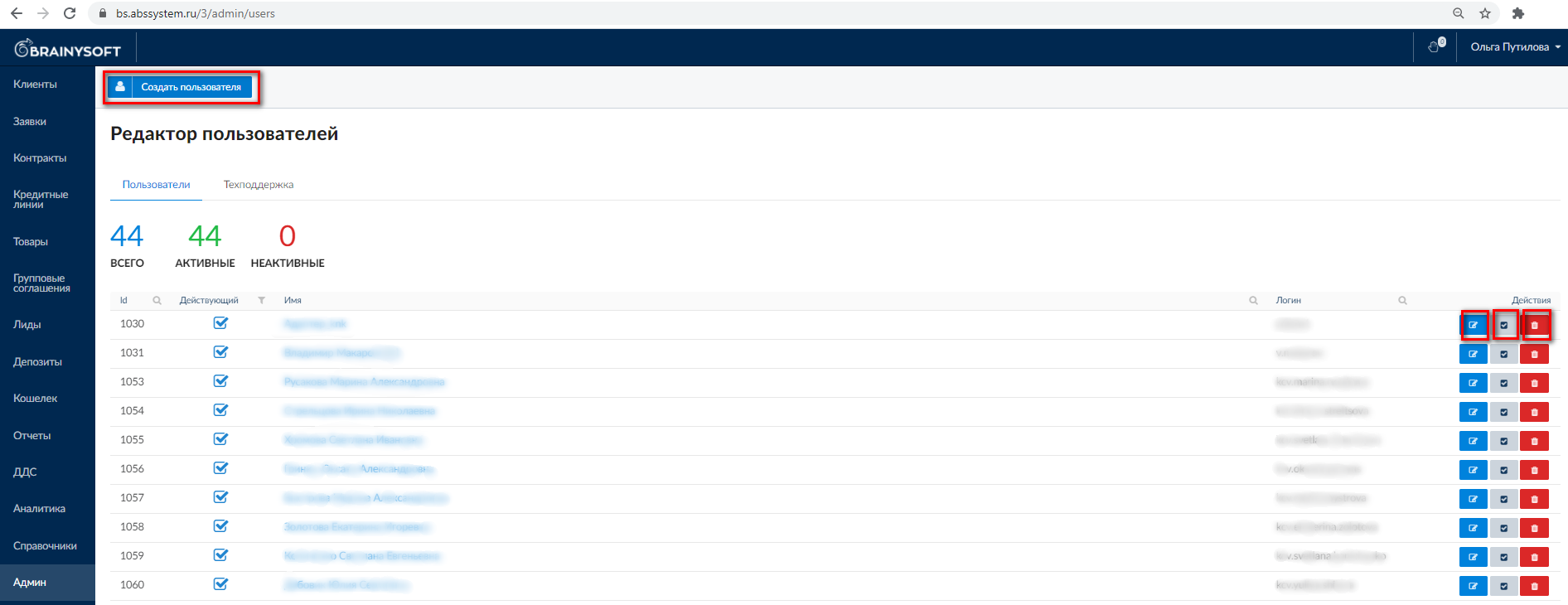
Then you need to specify the user's login and full name, select "Role", "Division", "Access Level" from dropdown lists, if necessary specify the user's phone, e-mail. At the end, be sure to click "Save".
After creating a new user account, a one-time password setup link will be available, which is sent to the user.