

Deleting Data from the System (Client/Application/Contract/Operations)
At the end of this article, you can watch a VIDEO TUTORIAL.
Before deleting any data from the system, it's important to understand the sequence of their relationships. It looks as follows:
Lead > Client > Client Monitoring > Application > Contract > Cash Flow (payments) > Processes (disbursements/accruals/repayments)
When deleting data, you should follow the reverse order. For example:
- You cannot delete a client until you delete the associated applications, contracts, and other objects.
- It's impossible to delete a contract if operations or payments have already been made on it.
Let's consider each step in detail.
1. Deleting Processes (Disbursements/Accruals/Repayments)
Processes are located on the main contract page.

Step-by-step instructions:
- Find the relevant contract by its number, client's last name, ID, or another criterion.
- Delete processes in reverse chronological order (from newest to oldest).
- For example, you cannot delete a process for February 1, 2017 if there are processes for February 2, 2017 and later.
- To delete an individual process, click the trash icon on the right. In the window that opens, confirm the action.

Bulk deletion:
- To delete all processes, click the trash icon in the earliest entry. The system will automatically select the entire list for deletion.
- You can also delete processes starting from a specific date. To do this, click the "Delete" button above the process list and specify the desired date and time.
2. Deleting Cash Flow (Payments)
Payments are located in the "Contracts > View > Financial Information" section.

Important conditions:
- Before deleting a payment, you must delete all processes starting from the payment date.
- For example, to delete an income of 3,000 rubles, you need to delete all processes for the period from January 29, 2018.
- After deleting a payment, all previous payments will become unaccepted and available for deletion.
Restoring payment history:
- Use the actions in the upper right corner of the page.
- When filling out the "Cash Flow - Income" form, you can enter the number of a previously deleted payment in the "Order Number" field, or leave the field empty — the system will assign a new sequential number.

3. Deleting a Contract
- Find the required contract using the most suitable criterion (for example, by contract number or client's last name).
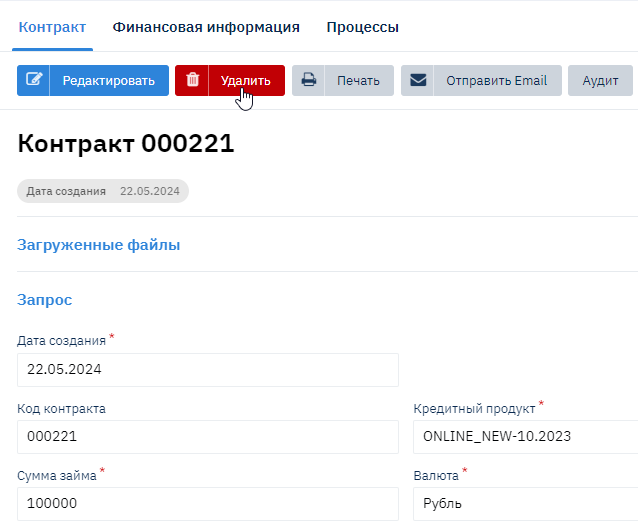
- Open the contract and click the "Edit" button.
- At the bottom of the form, a "Delete" button will appear. If all associated data (processes, payments) has been deleted, the contract will be deleted without errors.
4. Deleting an Application
The process of deleting applications is similar to deleting contracts.
5. Deleting Client Monitoring
Client monitoring is located in the "Admin > Client Monitoring" section.

- Deletion occurs immediately after selecting "Delete", without additional confirmations.
- If necessary, you can create a new monitoring record, for example, if the client's agent has changed.
6. Deleting a Client
A client is deleted similarly to a contract or application. However, deletion is only possible if the client has no remaining associations (applications, contracts, monitoring, etc.). Otherwise, the system will display an error.
7. Deleting Large Volumes of Data
If you need to delete a large volume of data (for example, all clients or contracts), use report export:
- Go to the "Reports > Basic" section.
- Select the desired report and click "Generate Report".
- A link to the Excel file will appear in the lower right corner of the list.
- The file will contain a list of all requested data as of the current moment.
Note: Deleting data from the system should be done with caution, as it may affect data integrity. It is recommended to make a backup of the data in advance.
Video Tutorial
For a visual overview of the data deletion process, you can watch the video tutorial: Watch video