Working with Financial Information Under the Contract
Financial information under the contract represents aggregate data about all types of operations and actions under the contract, such as cash flow, distribution of payments by amount types, interest accrual, schedule calculation, and detailed breakdown by operations.
To access the financial information section for a contract, click the "Financial Information" button in the upper left corner. You can also access financial information from the general Contracts list by clicking on the "₽" symbol.

You will see the following page:

Let's examine each block in detail.
1. Contract Information
Contract information: loan contract number, loan product name, loan amount, code or name of the branch where the contract was issued, creation date, issue date, interest rate, date of last operation.

2. Payment Processing Functionality. Printing Schedules and Reports
This functionality is designed for manually entering payments into the system, both bank payments (payment orders) and cash payments (cash receipt orders).

The "Process Contract" button - performs the corresponding accruals for a specified date. This functionality allows you to manually accrue interest, penalties, and other amounts for a specified date. (Note that the contract is processed automatically once a day).
To issue an amount under the contract, click the "Create Cash Flow" button:
Income – selected when you need to receive money into the cash register (repayment).
Expense - selected when issuing funds to the client.
Select the method of debiting/crediting funds in the appropriate block. The corresponding fields for filling will open.
Date, time – the date and time of payment is automatically filled with the current date.
Payment type – select bank or cash register.
Issue amount – automatically filled in as specified in the application.
Click "Save".
If your software version is integrated with payment systems, select the corresponding tab.

The "Adjustments" button - opens a window with frequently used operations and allows you to manually perform necessary operations with the contract.
The "Contract Restructuring" button - opens a window for selecting a restructuring application.
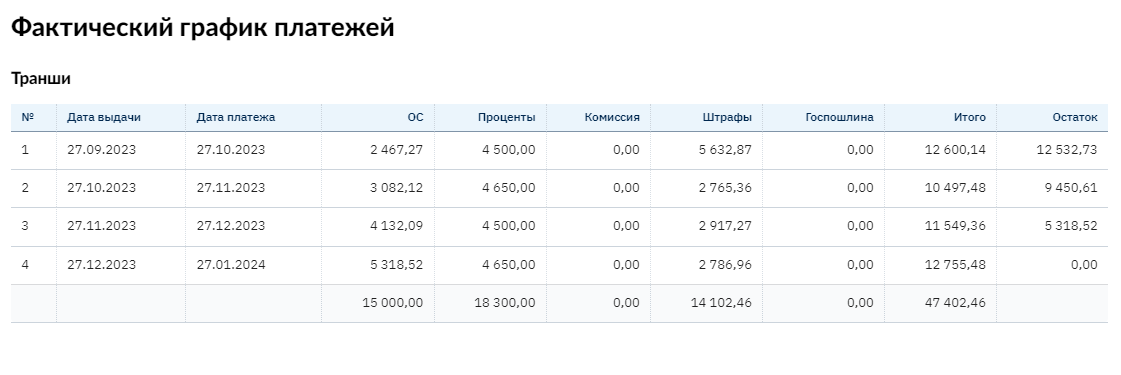
The "Schedules" button. In this block, you can print the planned schedule and the actual schedule. These schedules have differences: the planned schedule is generated at the time of contract issuance, while the actual schedule is generated taking into account repaid or overdue amounts.
For example, the planned schedule:
The "Reports" button opens the following menu:
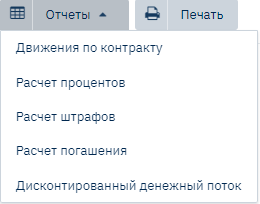
Contract Movements - displays a report showing all types of movements that occurred from the issue date to the date of the last operation under the contract.
Interest Calculation - displays a report on interest accrual.
Penalty Calculation – displays a report on penalty accrual.
Repayment Calculation – here you can view the remaining amount for repayment.
Discounted Cash Flow – this report will be for the new chart of accounts.
3. Total Table
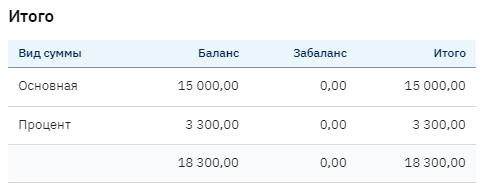
The "Total" table displays all accrued debt under the contract (by amount type) that has not yet been repaid, broken down by accounting type (balance/off-balance).
4. General Information
In the general information, we see the Contract Status History (currently the status is "Normal"; if the contract becomes overdue, the corresponding status will be added below).
All payments under the contract are displayed in the payments table and have an Acceptance indicator. Acceptance – the presence of payment distribution operations. If there is no flag in the Acceptance column, then the operation is not accepted (!!!).
For example, for this contract there are payments: 100,000 rubles via Cash Register dated 05/14/2018 Expense (contract issuance).
Here you can also download the Cash Expense Order by clicking the button with the paper sheet image.
5. Detailed Breakdown by Operations
The "Detailed Breakdown by Operations" section displays all operations performed under the contract from the issue date to the specified date (such as accrual, repayment, write-off, etc.). Operations can be performed on the contract manually by the user or automatically by the system according to the organization's accounting settings. Operations cannot be deleted directly in this table, as it is intended for viewing only. Deletion of operations is provided in another menu in strictly prescribed logic to maintain the correctness and relevance of information on the contract balance!

When clicking the "Details" button, a window opens with the ability to configure filtering to display the necessary operations, as well as the ability to change the order of operation display: in normal order or in reverse order.
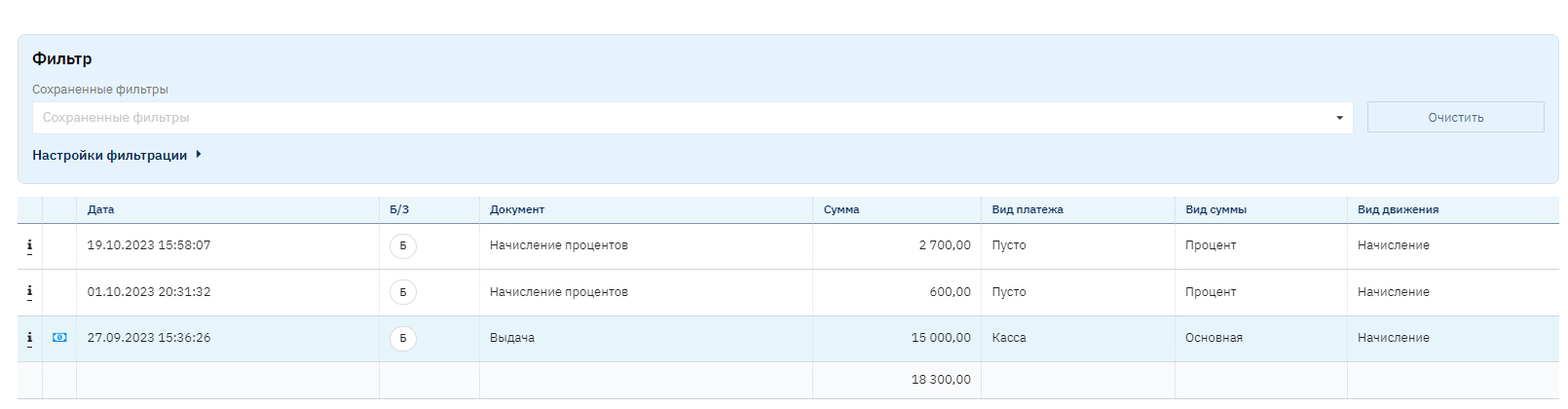
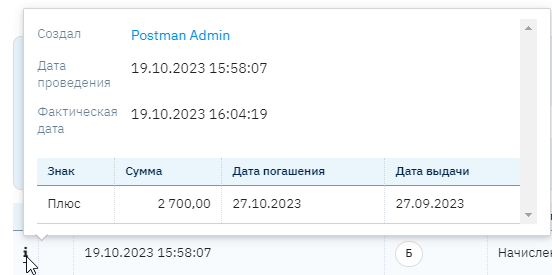
In the leftmost column, when hovering the mouse over the "i" symbol, a tooltip opens for the user. This field is informational and shows who and when created a particular operation. If the operation is related to Cash Flow, clicking on the Cash Flow number will display information about the payment.