

Loan Application Review
At the end of the article you can watch a VIDEO TUTORIAL...
After filling in all required fields in the loan application and clicking the "Save" button, the application is automatically submitted to the decision-making system. During the automatic verification, the client is evaluated according to the scoring scheme, requests are made to Rosfinmonitoring, FMS, and other verification services (for more details, see the "Decision-Making System" instructions). After successfully passing automatic checks, the final decision on the application is made manually by the verifier.
Access to application information and decision-making capabilities is only provided to users with the appropriate role. This page is not available to other users.
Access to the Application Review System
To access the application review system, go to the "Applications" menu item, then select the "Application Review" submenu:
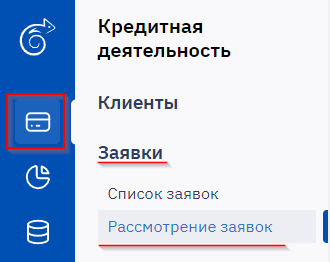
The opened window displays two main sections: applications awaiting review and applications already in progress:

Filters are available in each section to customize the display of applications.
Working with Applications Awaiting Review
This section displays brief information for each application with the ability to navigate to detailed view of the application or client. These applications are available for viewing by all users with the appropriate role.
Queue Applications Overview
The "Awaiting Review" section contains a list of all applications requiring review. Basic information is displayed for each application with active links for navigating to detailed view.
Taking an Application into Processing
To start working with an application or reassign it to another user, you need to open the detailed application view. Click the "View" button or the application number to navigate to the detailed view.

The review management module is displayed on the right side of the application screen:

The review module provides options for taking the application into processing or assigning it to a specific user through the dropdown list:

After clicking the "Take into Processing" button, the application moves to the "Applications in Progress" section. Within the detailed application view, options are available for approval, rejection, or returning to the queue. A detailed description of these actions is provided below.
Working with Applications in Processing
Managing Applications in Progress
Applications taken into processing are only available to the user who accepted them for review.
Returning an Application to the Queue
If necessary, the application can be returned to the review queue by clicking the "Return to Queue" button:
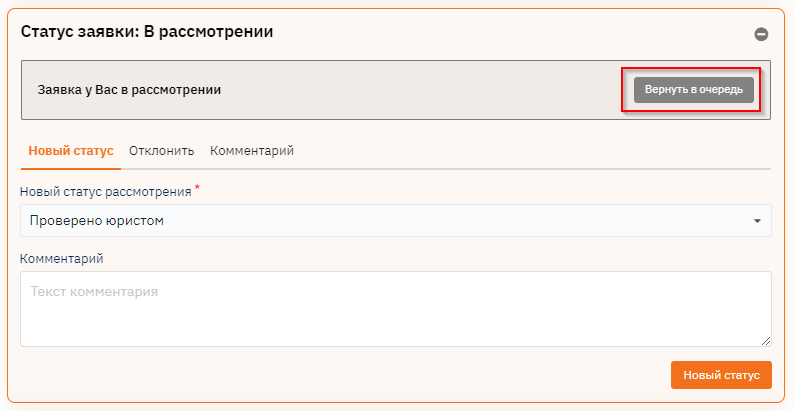
Borrower Analysis
Obtaining Application Form and Reports
To evaluate the borrower, click the "Download File" button in the top panel and select "Borrower Application Form". The program will generate an application form with all client data, which can be printed for detailed review.

When selecting "Client Position", the system will generate a report providing complete information on all inquiries, closed and current loans of this client in the system.
The client position report looks as follows:

Client Data Verification
Go to the client section – verify the completeness of the provided data (the client's full name is an active link for navigating to the client's profile). Various checks are also available depending on the configured services.
To check the credit history, click the "Credit History" button and select "NBKI History".
Click "Request History", after which the report can be exported from the program for detailed review.
To check in FSSP (Federal Bailiff Service), click on the "Check in FSSP" link.
Enter the first name, last name, and region, then click "Search".
Credit History Request
Within the application, you can request the client's credit history and various checks depending on the integrated services.
To request credit history, select the "Credit History" tab and from the dropdown list select the credit bureau to execute the request.

NBKI scoring and Scorista credit decision requests are also available.

Application Audit
The "Audit" button is also available in the button panel; clicking it generates a report with all changes that occurred in this application.

Example of the "Audit" report:

Making a Decision on the Application
Based on the obtained data, the verifier makes a decision on the further fate of the application. To set the application status, go to the "Application Review" section and select the required application.
For a negative decision (poor credit history or other reasons for distrust), click the "Reject" tab, and in the opened window select the reason for rejection.
For a positive decision, click the "New Status" tab, select the required status, and click the "New Status" button. You can add a comment that will be visible at all stages of decision-making.
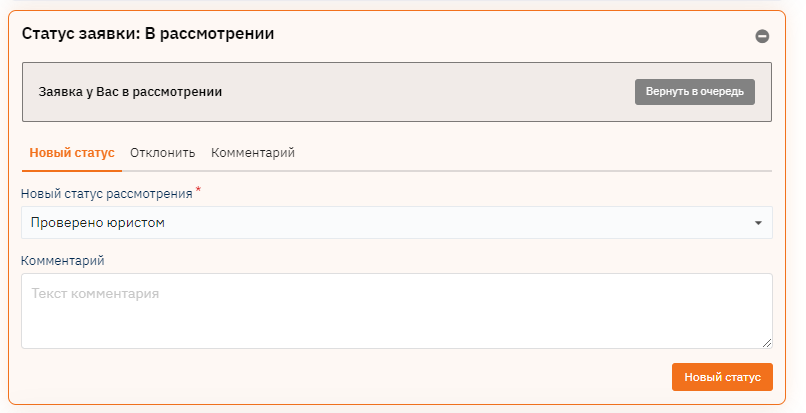
The decision-making system is configured in such a way that a loan application is approved only when a specific status is set, for example, "Approved".
In the decision-making system, it is possible to sequentially assign multiple users to review an application.
After the application is approved, a contract is automatically created in the system, an agreement is signed with the client, and funds are disbursed.
Application Widgets
On the right side of the application page, there is a set of widgets that simplify the work for organization employees.
1. Action History Widget
Displays the stages of application verification. When a stage is successfully passed, a green checkmark is displayed next to it; for a negative result - a red cross.
2. Scoring Widget
Contains the name of the scoring scheme and the "Verification Graph" button. Clicking the button opens a window with a flowchart reflecting the application verification process. If the DMS has a complex scheme, the branch through which the verification passed is highlighted in color on the diagram.
3. Client Notes Widget
Displays comments about the client. When switching from the "Read" tab to the "Write" tab, you can leave a comment on the application. These comments are informational in nature.