

Manual for Working with Applications in the Brainysoft System
Searching and Viewing Existing Applications
When clicking the "Applications" button, a window opens with the ability to search and view an existing application.

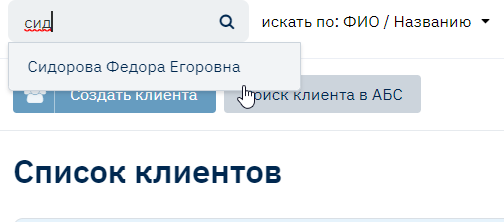
To view an existing application, enter the last name in the search bar and select it from the dropdown list. You can search by various data; to view the full list, click on the "triangle" located under the data entry line.
Creating a New Application
Selecting a Client
To create a loan application, in the "Client" menu item, use the search to select a client previously entered into the system who needs a loan application.
Creating an Application from the Client Card
In the client card, click the create button in the upper right corner and select "Application".

Filling Out the Application Form
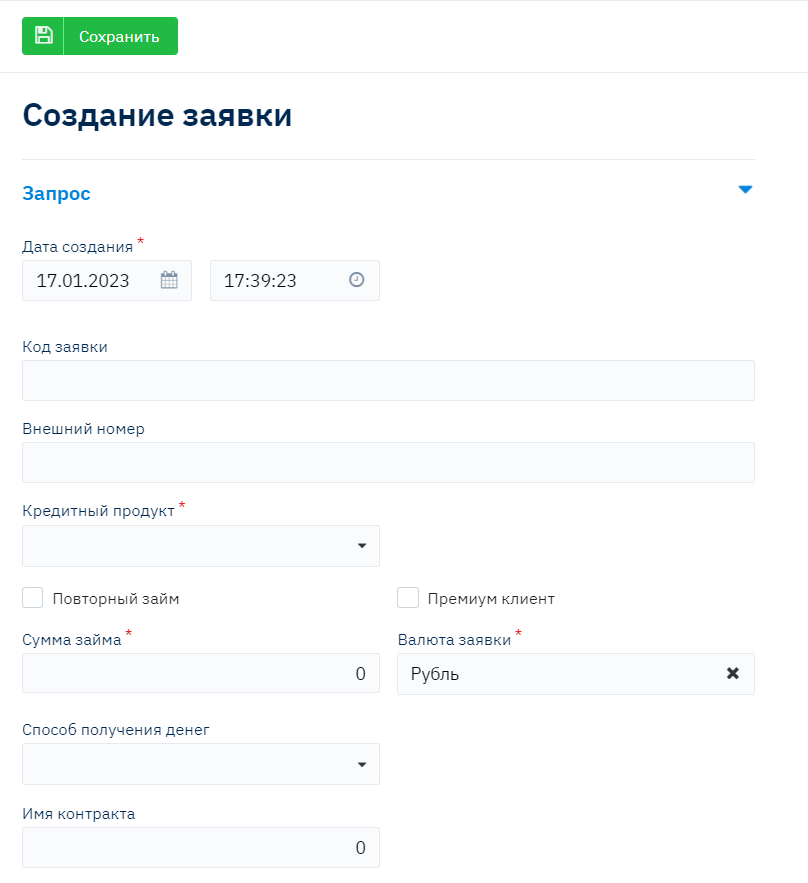
When clicking the "Create Application" link, the following form is displayed on the page:
!!! The number and names of displayed fields may differ, as they are configured individually for each organization. They can be edited using the Admin menu - Model Editor - Application.
"Request" Tab
Date and time of creation - automatically filled with the current system date. If necessary, the date can be changed manually.
Application code - automatically filled after saving the application. The code is determined as the maximum number +1. The user can change it if desired.
Credit product – Here we specify the Credit product (tariff), this field is pulled from the "Credit Products" directory.
(To create a credit product (tariff), see the "Credit Product" instructions)
Loan amount – here we enter the loan amount.
Application currency – Select the currency, Ruble by default.
Money receiving method - select the client's preferred method of receiving money, this field is pulled from the "Money Receiving Method" directory
"Credit Product" Tab
The "Credit Product" tab displays the credit conditions for the selected tariff. The fields will be filled automatically after we select the credit product. The fields on this tab are editable, allowing conditions to be changed for a client on an individual basis.

"Collateral" Tab
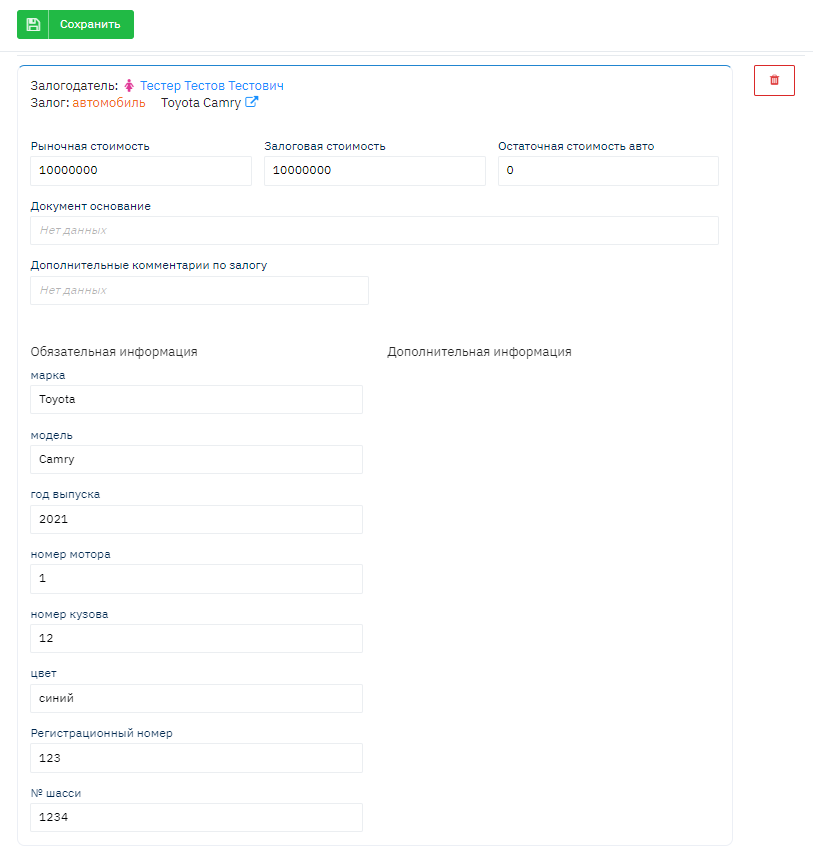
On the "Collateral" tab, you can add a co-borrower who has been previously entered into the client database: select the required collateral from the Collateral directory entered in advance. For example, a car as shown in the image below.
"Additional Information" Tab
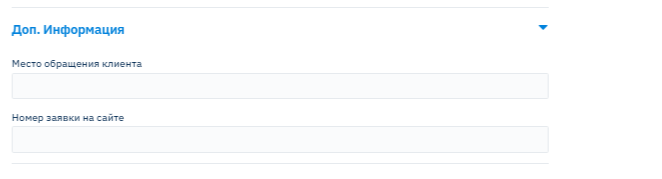
The "Additional Information" tab contains additional fields for entering supplementary information about the application. The following fields are available in this section:
"Client Contact Location" - a field for indicating the source or channel through which the client contacted the company (for example, website, office, phone call, advertising).
"Application Number on Website" - a field for entering the application number if the client initially submitted an application through the company's website. This field helps link the online application with the application in the Brainysoft system.
These fields are optional and are filled in as needed to track client acquisition sources and sales channels.
Click the "Save" button.