Setting up the DSS and the order receipt channel for the "Client creation method"
At the end of the article you can watch the VIDEO INSTRUCTION
For the correct operation of the "Client creation method", you need to configure the Decision Support System (DSS) and the order receipt channel. This will ensure the operation is executed without errors.
Step 1: Adding an expression to the DSS
For the method to work without errors, you need to add an expression to the DSS that always returns true (for example, 2 > 1).
1. Navigating to the DSS section
In the UI interface, go to the menu Admin > Credit Pipeline > Decision Support Systems.
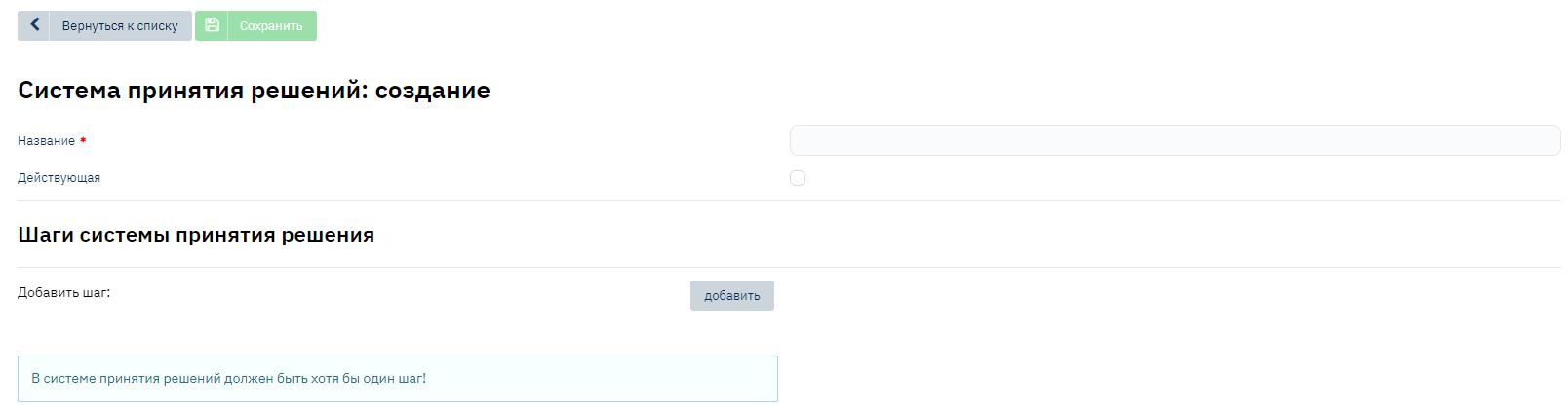
2. Creating a new DSS
Click the Create button to create a new DSS.
Fill in the DSS name and set its status to "Active". Click the Add button to add verification steps.
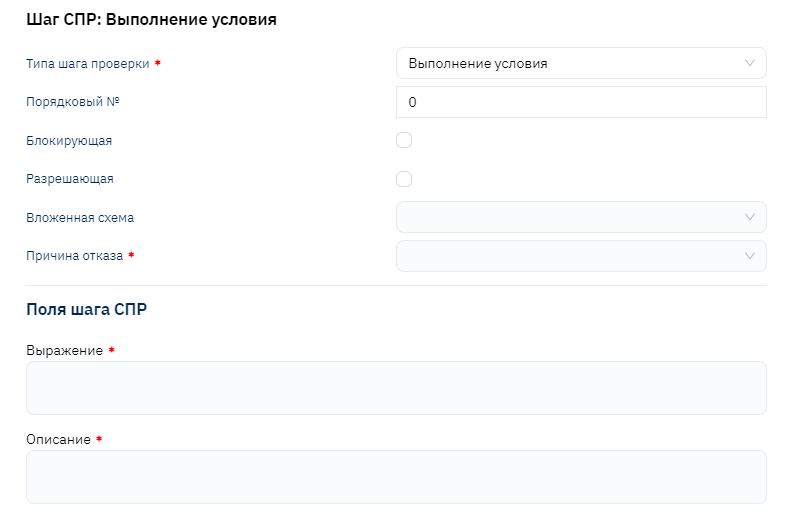
3. Adding a verification step
Select the "Condition execution" option.
Fill in the required fields and specify an expression that always returns
true. For example, use the expression2 > 1.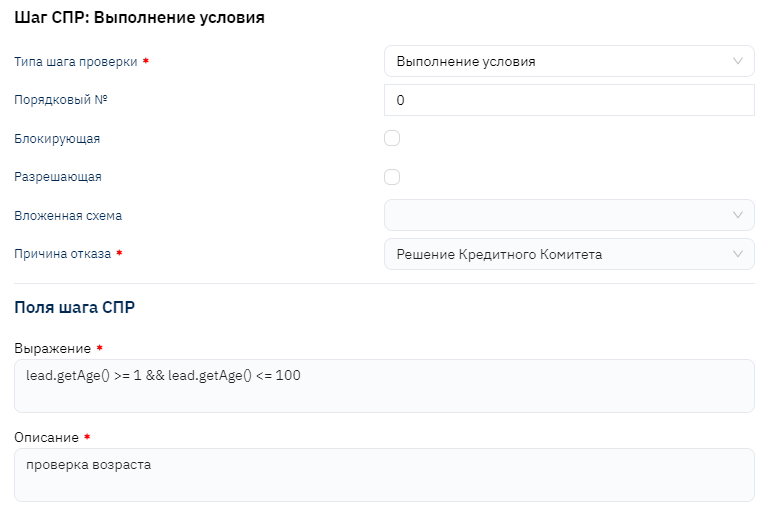
Step 2: Setting up the receipt channel
After configuring the DSS, you need to set up the order receipt channel.
1. Navigating to the "Channels" section
Go to the menu Admin > Credit Pipeline > Channels.
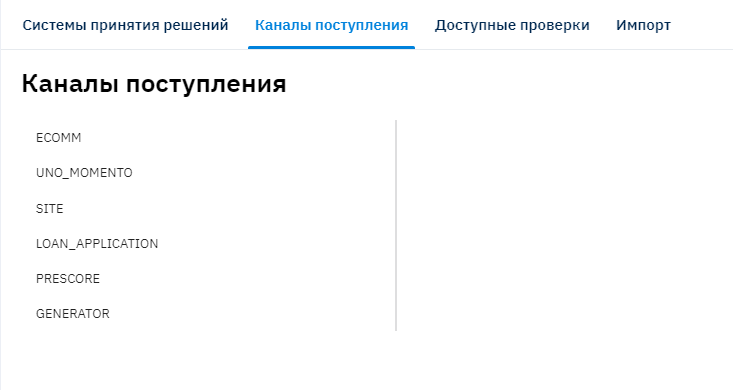
2. Selecting the receipt channel
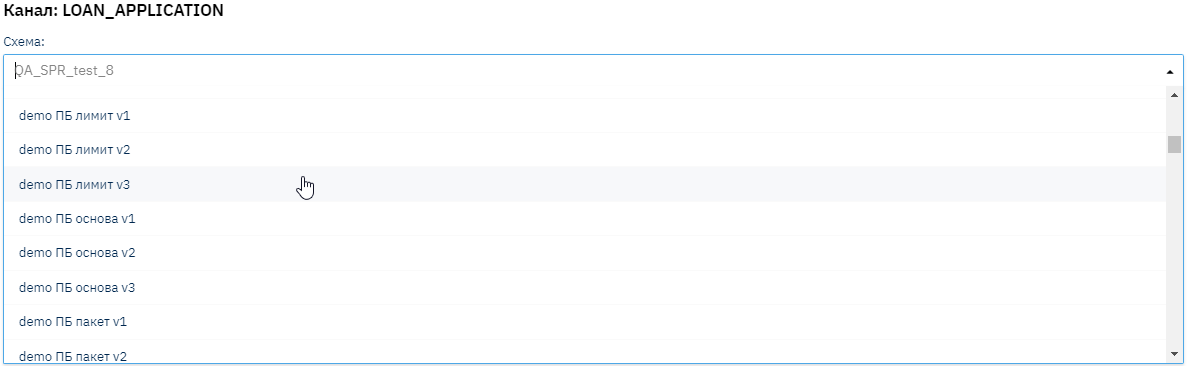
Select the receipt channel "LOAN_APPLICATION". This channel is used for creating orders through the UI.
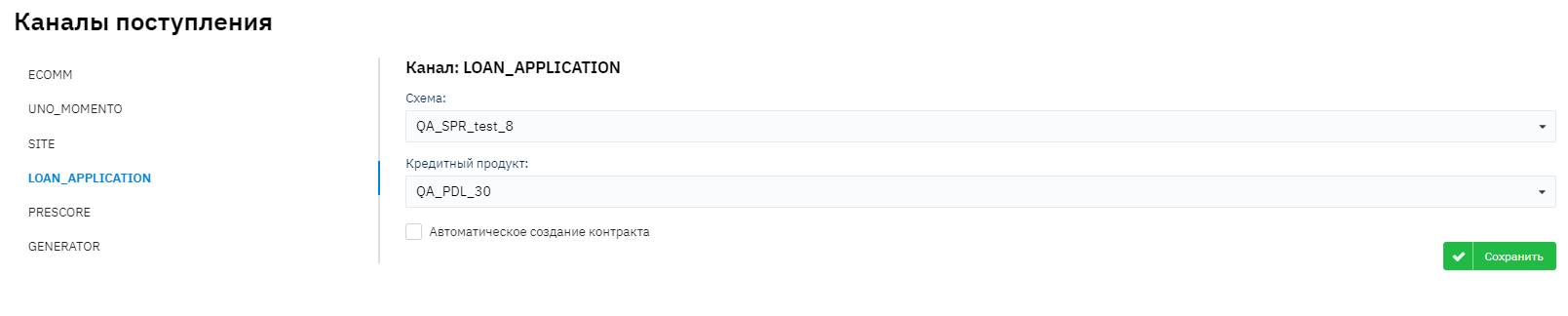
3. Configuring channel parameters
Select the previously created DSS and credit product. Make sure the "Automatic contract creation" checkbox is unchecked.